
How to Resolve OLE DB Jet Error in SQL Server – Complete Guide
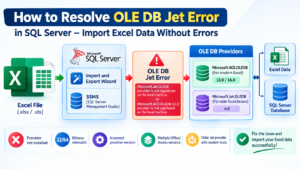
Importing data from Microsoft Excel into SQL Server is a common requirement for SQL Developers, Database Administrators, Data Analysts, and ETL professionals. However, while using the SQL Server Import and Export Wizard, you may encounter an OLE DB Jet Error or an error such as “Microsoft.ACE.OLEDB.12.0 provider is not registered on the local machine.”
This error can prevent Excel files from being imported into SQL Server and is usually related to a missing database connectivity provider, an incorrect provider version, or a 32-bit and 64-bit compatibility issue.
In this guide, we will understand what causes the OLE DB Jet error and explore practical ways to resolve it.
What Is an OLE DB Jet Error?
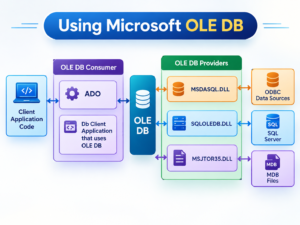
OLE DB is a Microsoft data access technology that allows applications to connect to different data sources. Older Excel and Access integrations commonly used the Microsoft Jet OLE DB Provider.
For newer Excel files, the Microsoft ACE OLE DB Provider is commonly used. When SQL Server, SSMS, or the Import and Export Wizard cannot find the required provider, an error may appear.
Typical messages include:
- Microsoft.Jet.OLEDB provider is not registered on the local machine.
- Microsoft.ACE.OLEDB.12.0 provider is not registered on the local machine.
- Microsoft.ACE.OLEDB.16.0 provider is not registered on the local machine.
- The operation could not be completed.
Why Does the OLE DB Jet Error Occur?
There are several possible reasons for this problem.
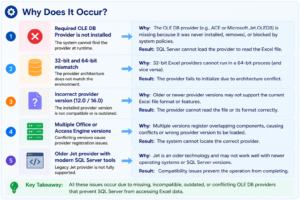
1. Required OLE DB Provider Is Not Installed
If the required Microsoft Access Database Engine or ACE provider is not installed, SQL Server cannot establish a connection to the Excel file.
2. 32-Bit and 64-Bit Mismatch
This is one of the most common causes.
For example, you may have a 64-bit ACE provider installed while the Import and Export Wizard is running as a 32-bit application, or vice versa.
The provider architecture must be compatible with the application attempting to use it.
3. Incorrect Provider Version
Your connection may be looking for Microsoft.ACE.OLEDB.12.0 while your system has a different provider available.
In other environments, the expected provider may be Microsoft.ACE.OLEDB.16.0.
4. Multiple Office or Access Database Engine Versions
Having different 32-bit and 64-bit Office or Access Database Engine components installed can create compatibility problems.
5. Older Jet Provider With Modern SQL Server Tools
Older applications may depend on the Jet provider, while modern environments may use ACE. Recent SQL Server and SSMS environments can therefore require a different approach from older tutorials.
How to Resolve the OLE DB Jet Error
Step 1: Identify the Exact Error Message
First, carefully check the error displayed by the SQL Server Import and Export Wizard.
For example:
Microsoft.ACE.OLEDB.16.0 provider is not registered on the local machine.
The provider name in the error is important because it tells you which data-access component SQL Server is attempting to use.
Step 2: Check Your SSMS and Wizard Architecture
Determine whether the Import and Export Wizard being used is 32-bit or 64-bit.
This is important because the installed ACE provider must match the architecture of the application using it.
For example:
- 32-bit Wizard → compatible 32-bit provider
- 64-bit Wizard → compatible 64-bit provider
Step 3: Install the Required Microsoft Access Database Engine
If the required provider is missing, install the appropriate Microsoft Access Database Engine or ACE component for your environment.
The Microsoft Access Database Engine provides connectivity between applications and Excel or Access data sources.
After installation, restart SSMS or the Import and Export Wizard before testing the connection again.
Step 4: Match the Provider With Your Environment
If you are working with a modern Excel file such as .xlsx, the ACE provider is generally the relevant provider rather than the older Jet provider.
For example, an environment may report:
Microsoft.ACE.OLEDB.12.0
or:
Microsoft.ACE.OLEDB.16.0
The important point is to use a provider compatible with your SQL Server tools and Excel environment.
Step 5: Restart SQL Server Management Studio
After installing or changing the database connectivity components, close and reopen SSMS.
Then launch the Import and Export Wizard again and test the Excel connection.
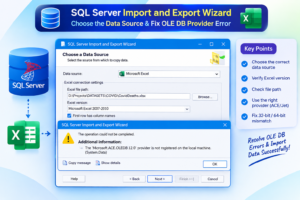
Step 6: Select the Correct Excel Data Source
When using the SQL Server Import and Export Wizard, select the appropriate Excel data source available in your environment.
Then select your Excel workbook and worksheet and verify that the preview displays the expected data.
Alternative Solution: Convert Excel to CSV
If the OLE DB provider continues to cause problems, converting the Excel workbook to CSV format can be a simple alternative.
CSV files do not require the Excel OLE DB provider, making the import process simpler in many environments.
You can then use SQL Server’s flat-file import functionality to load the CSV data into a database table.
Common Mistakes to Avoid
- Installing a 32-bit provider when the wizard requires 64-bit.
- Installing a 64-bit provider when the application requires 32-bit.
- Using an outdated Jet provider with a modern Excel/SQL Server environment.
- Installing multiple conflicting versions of Access Database Engine without checking compatibility.
- Not restarting SSMS after installing the provider.
- Assuming that the SQL Server engine architecture alone determines the required provider architecture.
OLE DB Jet Error – Quick Troubleshooting Checklist
| Problem | Possible Solution |
|---|---|
| Provider not registered | Install the required ACE/Access Database Engine provider. |
| 32-bit/64-bit mismatch | Install a provider compatible with the Import and Export Wizard. |
| Excel source unavailable | Verify that the required Excel connectivity component is installed. |
| Error after provider installation | Restart SSMS and try the Import/Export Wizard again. |
| Excel import still fails | Convert the Excel file to CSV and use a flat-file import. |
Watch the Video: How to Resolve OLE DB Jet Error
If you prefer a practical demonstration, watch the following video:
How to Resolve OLE DB Jet Error
Why Understanding OLE DB Errors Is Important for SQL Professionals
OLE DB-related issues are not limited to Excel imports. Understanding database connectivity, providers, drivers, data sources, and architecture compatibility is valuable for SQL Developers, SQL DBAs, Data Engineers, ETL Developers, and BI professionals.
In real-world projects, data may come from Excel, CSV files, SQL Server, Access databases, cloud platforms, APIs, and other sources. Knowing how to troubleshoot connectivity issues can save significant development and troubleshooting time.
Learn SQL Server With Real-Time Practical Training
At SQL School Training Institute, training focuses on practical, step-by-step learning with real-time scenarios and projects. Learners can build hands-on experience with SQL Server, T-SQL, SQL DBA, Azure Data Engineering, Power BI, Microsoft Fabric, and other modern data technologies.
Build practical skills. Work on real-time scenarios. Become job-ready.
Explore SQL and Data Engineering training programs at SQL School Training Institute.
Conclusion
The OLE DB Jet Error can look complicated, but the root cause is often straightforward: a missing provider, an incompatible provider version, or a 32-bit/64-bit mismatch.
Start by identifying the exact provider mentioned in the error message. Then verify the architecture of the Import and Export Wizard, install the appropriate Access Database Engine or ACE provider, restart the SQL tools, and test the Excel connection again.
If Excel connectivity continues to be problematic, converting the workbook to CSV and importing it as a flat file can be an effective alternative.
For SQL professionals, learning how to troubleshoot these real-world connectivity problems is an important part of becoming job-ready and working confidently with SQL Server and data integration environments.
Ready to Build Strong SQL Server Skills?
Don’t just learn SQL Server concepts—gain practical experience by working on real-time scenarios and projects.
Join SQL School Training Institute and learn SQL Server, T-SQL, SQL DBA, Azure Data Engineering, Power BI, and other in-demand data technologies with 100% practical, step-by-step training.
Start your learning journey today and become job-ready with real-world skills!
Trainer: Mr. Sai Phanindra
📞 Contact SQL School Training Institute: +91 9666440801 | +91 9951440801
🌐 Visit: sqlschool.com
#OLEDB #OLEDBJetError #SQLServer #SQLServerError #SQLServerTutorial #SQLServerImport #ExcelToSQLServer #MicrosoftACE #ACEOLEDB #JetOLEDB #SSMS #SQLServerImportExportWizard #ExcelImport #DataImport #SQLDeveloper #SQLDBA #DataEngineering #ETL #DatabaseManagement #SQLTraining #SQLSchool