
How to Connect Python to SQL Server Database: A Complete Practical Guide
In today’s data-driven world, businesses depend on databases to store, manage, and analyze large volumes of information. Microsoft SQL Server is one of the widely used relational database management systems, while Python has become an essential programming language for data engineering, automation, analytics, and machine learning.
But what happens when you need to process SQL Server data using Python?
This is where Python SQL Server connectivity becomes important.
By integrating Python with Microsoft SQL Server, developers and data professionals can retrieve database records, execute SQL queries, automate data processing, perform transformations, and send processed information back to the database.
In this practical tutorial, we will explore how to connect Python to SQL Server using the PyODBC library. We will also understand how to retrieve database records into Pandas DataFrames, combine multiple datasets, and perform common data operations.
Whether you are a Python developer, SQL professional, Data Analyst, or aspiring Data Engineer, this guide will help you understand the complete database connectivity process.
Understanding the Role of Python in SQL Server Database Operations
Python does not directly communicate with SQL Server on its own. It uses database connectivity libraries and drivers to establish communication between the programming environment and the database server.
One of the commonly used approaches is PyODBC.
PyODBC acts as a bridge between Python and SQL Server through the Open Database Connectivity (ODBC) interface.
Once the connection is established, Python can communicate with SQL Server and perform various database operations.
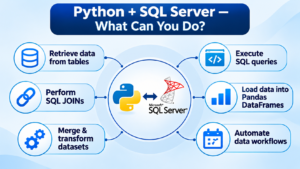
What can you accomplish with this integration?
- Retrieve information from SQL Server tables.
- Execute SQL queries directly from Python.
- Access multiple tables using SQL JOIN operations.
- Load database records into Pandas DataFrames.
- Merge and transform datasets.
- Automate data processing workflows.
- Write processed information back into SQL Server.
Why Modern Data Workflows Combine Python with SQL Server
Python and SQL Server complement each other in several technical and business applications.
Consider an e-commerce organization that stores customer details, product information, and sales transactions in SQL Server.
A Data Analyst can use Python to retrieve sales information, calculate revenue, identify top-performing products, and prepare reports.
Similarly, a Data Engineer can use Python to automate data extraction and transformation activities.
Some important use cases include:
1. Data Engineering: Extract information from SQL Server and process it through Python-based ETL workflows.
2. Business Intelligence: Retrieve business data and prepare analytical reports.
3. Data Analysis: Perform filtering, aggregation, merging, and other transformations.
4. Machine Learning: Prepare database records for machine learning models.
5. Process Automation: Automate repetitive database operations and data-processing activities.
Before You Begin: Tools Required for Database Connectivity
Before establishing a Python SQL Server connection, make sure the following tools and components are available.
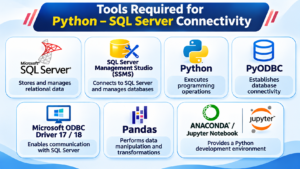
| Tool / Component | Purpose |
|---|---|
| Microsoft SQL Server | Stores and manages relational data |
| SQL Server Management Studio (SSMS) | Connects to SQL Server and manages databases |
| Python | Executes programming operations |
| PyODBC | Establishes database connectivity |
| Microsoft ODBC Driver 17 or 18 | Enables communication with SQL Server |
| Pandas | Performs data manipulation and transformations |
| Anaconda / Jupyter Notebook | Provides a Python development environment |
You should also have:
- A running SQL Server instance.
- An existing SQL Server database.
- Database login credentials or an appropriate Windows authentication setup.
- Basic knowledge of SQL queries and Python programming.
PyODBC Explained: The Connectivity Layer Between Python and SQL Server
PyODBC is a Python library that enables applications to connect with databases through ODBC drivers.
For SQL Server, it allows Python programs to establish database connections, execute SQL statements, and retrieve records.
The connectivity process follows this sequence:
Python Environment → PyODBC Library → Microsoft ODBC Driver → SQL Server Database
The ODBC driver handles the communication between the Python application and SQL Server.
For this tutorial, we will use Microsoft ODBC Driver 18 for SQL Server.
Building Your First Python-to-SQL Server Connection
Let’s understand the complete connection process using a practical example.
We will use SQL Server Management Studio and Jupyter Notebook to establish the connection.
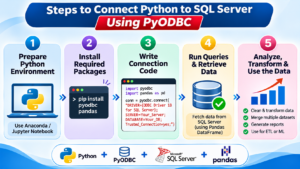
Prepare the Python Environment and Install Required Packages
First, open Anaconda Navigator and launch Jupyter Notebook.
Create a new Python notebook and execute the following command:
%pip install pyodbc pandasThis command installs two important Python libraries.
pyodbc– Establishes communication with SQL Server.pandas– Helps retrieve and manipulate database records.
Wait until the installation is completed successfully.
Confirm That the SQL Server ODBC Driver Is Available
After installing the Python packages, import PyODBC and verify the installed ODBC drivers.
import pyodbc

print(pyodbc.drivers())
Example Output:
[
    'ODBC Driver 17 for SQL Server',
    'ODBC Driver 18 for SQL Server'
]
The output depends on the drivers installed on your system.
If the required driver is not displayed, install the corresponding Microsoft ODBC Driver separately.
Remember that installing PyODBC does not automatically install the Microsoft ODBC driver.
Configure the SQL Server Connection Parameters
Before connecting Python to SQL Server, open SQL Server Management Studio (SSMS).
Perform the following activities:
- Launch SQL Server Management Studio.
- Connect to your SQL Server instance.
- Select the required database.
- Verify that the required tables are available.
- Execute a sample SQL query to confirm database access.
Now return to Jupyter Notebook and import the required libraries.
import pyodbc
import pandas as pd
import pandas.io.sql as psql
Next, configure the database connection.
cnxn = pyodbc.connect(
    driver='{ODBC Driver 18 for SQL Server}',
    server=r'YOUR_SERVER_NAME',
    database='YOUR_DATABASE_NAME',
    UID='YOUR_USERNAME',
    PWD='YOUR_PASSWORD',
    Encrypt='yes',
    TrustServerCertificate='no'
)

print("Successfully connected to SQL Server!")
Understand the connection parameters:
driver– Specifies the installed SQL Server ODBC driver.server– Specifies the SQL Server instance name.database– Identifies the database to connect to.UID– Specifies the SQL Server username.PWD– Specifies the SQL Server password.Encrypt– Enables encrypted communication.TrustServerCertificate– Controls certificate validation.
Replace the sample values with your actual SQL Server details.
For Windows Authentication, you can use an appropriate trusted connection configuration instead of SQL username and password.
Security Note: Never publish actual database usernames or passwords in your code. Use environment variables or a secure secrets manager. Do not disable certificate validation in production environments.
Extracting SQL Server Records Directly into Python
After establishing the database connection, the next activity is retrieving information from SQL Server.
Let’s assume we have a database named PRODUCTDATABASE containing a table called PRODUCTS_DATA.
Our requirement is to retrieve product information where the product color is RED.
Create a cursor and execute the following query:
cursor = cnxn.cursor()

cursor.execute("""
    SELECT
        ProductKey,
        EnglishProductName,
        ListPrice
    FROM PRODUCTS_DATA
    WHERE COLOR = 'RED'
""")

rows = cursor.fetchall()

for row in rows:
    print(row)
How does this code work?
cnxn.cursor()creates a database cursor.cursor.execute()executes the SQL statement.cursor.fetchall()retrieves the query results.print(row)displays the returned records.
This method allows you to execute SQL queries directly from your Python environment without manually opening SSMS every time.
Turning Database Records into Pandas DataFrames
Retrieving database records is only one part of the process.
In real-world Data Engineering and Data Analytics projects, you often need to manipulate and transform the retrieved information.
Pandas makes this process easier by providing DataFrames.
A DataFrame is a two-dimensional data structure consisting of rows and columns.
Let’s retrieve the product information and load it into a DataFrame.
cursor = cnxn.cursor()

cursor.execute("""
    SELECT
        ProductKey,
        EnglishProductName,
        ListPrice
    FROM PRODUCTS_DATA
    WHERE COLOR = 'RED'
""")

columns = [col[0] for col in cursor.description]

rows = cursor.fetchall()

df1 = pd.DataFrame.from_records(
    rows,
    columns=columns
)

display(df1)
Understanding the execution:
- Execute the SQL query against the database.
- Retrieve column names using
cursor.description. - Fetch the returned database records.
- Create a DataFrame using
pd.DataFrame.from_records(). - Display the final DataFrame.
Now, the product information is available in Python for further analysis and transformations.
Working with Multiple SQL Server Tables in Python
In practical projects, business information is usually distributed across multiple database tables.
For example:
PRODUCTS_DATAstores product information.SALES_DATAstores sales transaction information.
Let’s retrieve sales information from the second table.
cursor = cnxn.cursor()

cursor.execute("SELECT * FROM SALES_DATA")

columns = [col[0] for col in cursor.description]

rows = cursor.fetchall()

df2 = pd.DataFrame.from_records(
    rows,
    columns=columns
)

display(df2)
Now we have two DataFrames:
df1contains product information.df2contains sales information.
Both datasets are available in Python and can be used for further processing.
Combining Business Datasets Through Pandas Merge Operations
Once you have loaded multiple SQL Server tables into Python, you may need to combine the information.
Pandas provides the merge() function to combine DataFrames using common columns.
For example, if both datasets contain a common column called ProductKey, you can merge them as follows:
df3 = pd.merge(
    df1,
    df2,
    on='ProductKey',
    how='inner'
)

display(df3)
Explanation:
df1– First DataFrame containing product details.df2– Second DataFrame containing sales details.on='ProductKey'– Specifies the common column.how='inner'– Returns records with matching keys in both DataFrames.df3– Stores the merged result.
You can also use other join types depending on the requirement:
- Inner Join
- Left Join
- Right Join
- Outer Join
This approach helps combine information from different sources for business analysis.
Three Practical Approaches to Retrieve SQL Server Data
There are multiple ways to access information from SQL Server using Python.
The appropriate approach depends on the database structure and project requirements.
Approach 1: Retrieve Required Columns from Individual Tables
You can execute a query against a particular table and retrieve only the columns required for your application.
SELECT
    ProductKey,
    EnglishProductName,
    ListPrice
FROM PRODUCTS_DATA;
This approach is useful when you need a limited set of columns rather than the complete table.
Approach 2: Combine Related Tables Using SQL JOINs
When information is distributed across multiple tables, SQL JOIN operations help retrieve related records.
SELECT
    P.ProductKey,
    P.EnglishProductName,
    S.SalesAmount
FROM PRODUCTS_DATA P
INNER JOIN SALES_DATA S
    ON P.ProductKey = S.ProductKey;
This method is useful for retrieving related information through common database keys.
Approach 3: Simplify Repeated Queries Using SQL Server Views
A SQL Server view allows you to store a reusable query definition in the database.
For example:
CREATE VIEW vw_ProductSales AS
SELECT
    P.ProductKey,
    P.EnglishProductName,
    S.SalesAmount
FROM PRODUCTS_DATA P
INNER JOIN SALES_DATA S
    ON P.ProductKey = S.ProductKey;
You can access this view directly from Python.
df = pd.read_sql_query(
    "SELECT * FROM vw_ProductSales",
    cnxn
)

display(df)
Views help organize frequently used queries and simplify data access.
Sending Processed Python Data Back to SQL Server
Python SQL Server connectivity is not limited to retrieving information.
You can also insert processed information back into SQL Server using PyODBC.
For example, let’s assume you have a DataFrame named df3 and a destination table named PROCESSED_PRODUCT_SALES with matching columns.
insert_query = """
INSERT INTO PROCESSED_PRODUCT_SALES
(ProductKey, EnglishProductName, ListPrice)
VALUES (?, ?, ?)
"""

cursor = cnxn.cursor()

cursor.executemany(
    insert_query,
    df3[['ProductKey', 'EnglishProductName', 'ListPrice']]
    .itertuples(index=False, name=None)
)

cnxn.commit()

print("Data inserted successfully!")
Explanation:
INSERT INTOspecifies the destination table.?represents parameter placeholders.executemany()executes the insert operation for multiple records.commit()saves the database changes.
The destination table must contain compatible columns. The example assumes that df3 contains the three specified columns.
Using parameterized queries helps prevent SQL injection and handles data values more safely.
Business Benefits of Integrating Python with SQL Server
Combining Python and SQL Server creates opportunities for more efficient data processing and application development.
1. Improved Data Transformation
Pandas provides convenient functions for filtering, merging, grouping, and transforming datasets.
2. Simplified Application Integration
Python applications can communicate with SQL Server and retrieve information programmatically.
3. Better Data Access Management
Database permissions and views help control access to business information.
4. Efficient Data Engineering Workflows
Python and SQL Server can work together in extraction, transformation, and loading processes.
5. Machine Learning Integration
Data retrieved from SQL Server can be prepared and processed using Python machine learning libraries.
Troubleshooting Python and SQL Server Connectivity Problems
Sometimes, the connection between Python and SQL Server may fail due to configuration or authentication issues.
Here are some common problems and their possible solutions.
| Common Error | Recommended Solution |
|---|---|
| ODBC Driver Not Found | Install the required Microsoft SQL Server ODBC driver. |
| Login Failed for User | Verify authentication details and database permissions. |
| Server Not Found | Check the server name, instance name, and network connectivity. |
| SSL Certificate Error | Verify the server certificate and encryption configuration. |
| Database Not Found | Confirm that the specified database exists. |
| PyODBC Module Not Found | Install PyODBC using pip in the active Python environment. |
Troubleshooting Tip: Always verify the SQL Server service, database availability, installed ODBC driver, authentication configuration, and connection parameters before debugging the Python code.
Frequently Asked Questions About Python SQL Server Integration
1. How can I connect Python to SQL Server without using SSMS?
You can connect Python directly to SQL Server using PyODBC and the Microsoft ODBC Driver. SSMS is useful for database administration and testing, but it is not required for every Python connection.
2. Is PyODBC required to connect Python to SQL Server?
No. PyODBC is one of the commonly used options. Other approaches include SQLAlchemy and other database connectivity libraries.
3. Can Python retrieve SQL Server data into Pandas?
Yes. You can execute SQL queries using PyODBC, retrieve the records, and convert them into Pandas DataFrames for data analysis.
4. How do I connect multiple SQL Server tables using Python?
You can either execute SQL JOIN queries directly in SQL Server or retrieve individual tables into Pandas DataFrames and combine them using pd.merge().
5. Can Python insert data into SQL Server?
Yes. PyODBC supports INSERT, UPDATE, and DELETE operations. You can also use SQLAlchemy and Pandas to write DataFrame records into database tables.
6. Which ODBC driver is recommended for Python SQL Server connectivity?
Microsoft ODBC Driver 18 for SQL Server is a suitable choice for new applications. Driver 17 is also supported in many existing environments.
7. Is Python and SQL Server integration useful for Data Engineering?
Absolutely. This combination is useful for ETL development, database automation, data transformation, reporting, and building data processing workflows.
Final Thoughts: Making SQL Server Data More Powerful with Python
Connecting Python to SQL Server is an important technical skill for anyone working in database development, Data Analytics, and Data Engineering.
With PyODBC, you can establish database connectivity, execute SQL queries, retrieve information, and load records into Pandas DataFrames.
By combining Python’s data-processing capabilities with SQL Server’s database management features, you can build efficient data workflows and solve real-world business problems.
Start by practicing the examples in this tutorial and gradually explore advanced database operations, ETL workflows, and real-time data processing.
How to Connect Python to SQL Server Database Notes: Click Here
Want to Learn Python, SQL Server, and Data Engineering?
Don’t stop with theory! Gain practical knowledge, work on real-world projects, and develop the technical skills required in today’s IT industry.
Join SQL School and take the next step in your Data Engineering journey.
Start Learning Today!
Website: https://sqlschool.com/
Contact us: +91 90300 40801, +91 96664 40801
#Python #SQLServer #PyODBC #DataEngineering #PythonProgramming #Pandas #SQLTraining #DataAnalytics #LearnPython #SQLSchool

