
Power BI Training: From Raw Data to Interactive Business Intelligence Solutions
Introduction: Turn Business Data into Better Decisions
Every business generates data through sales transactions, customer interactions, financial records, marketing campaigns, and operational activities. However, collecting data is only the beginning. The real value comes from converting that data into meaningful information that supports better business decisions.
Microsoft Power BI helps organizations transform complex datasets into clear visual insights through interactive dashboards, professional reports, and business performance analytics.
With Power BI Training at SQL School, learners can explore data preparation, Power Query, data modeling, DAX calculations, report development, and real-world Business Intelligence projects. These skills help aspiring Data Analysts and BI Developers understand how businesses use data to measure performance, identify trends, and make informed decisions.
What Makes Microsoft Power BI a Powerful Analytics Tool?
Microsoft Power BI is a Business Intelligence and data visualization platform designed to connect, analyze, and present data from different sources.
Instead of manually preparing multiple spreadsheets and static reports, users can create interactive reports that allow business teams to explore information using filters, slicers, charts, and key performance indicators.
Power BI supports several important activities:
- Connecting to databases, spreadsheets, and supported cloud services.
- Cleaning and transforming raw data.
- Building relationships between different datasets.
- Creating calculations using DAX.
- Designing interactive reports and dashboards.
- Publishing reports and sharing insights through Power BI Service.
These capabilities make Power BI useful across industries such as retail, banking, healthcare, manufacturing, education, and information technology.
Explore the Essential Building Blocks of Power BI
Understanding the major components of Power BI helps learners develop a complete Business Intelligence workflow.
Power BI Desktop: Your Report Development Environment
Power BI Desktop is used to connect to data sources, transform information, build data models, create DAX measures, and design interactive reports.
Power Query: Prepare Data for Accurate Analysis
Power Query provides tools for cleaning, reshaping, combining, and preparing data before it is loaded into a Power BI data model.
DAX: Convert Business Requirements into Calculations
Data Analysis Expressions (DAX) is the formula language used to create measures, calculated columns, and analytical calculations.
Power BI Service: Publish and Share Business Insights
Power BI Service supports publishing, sharing, collaboration, workspace management, and other report delivery activities, subject to permissions and licensing.
Power BI Mobile: Access Reports on the Move
Supported mobile devices allow users to view and interact with Power BI reports while away from their desktops.
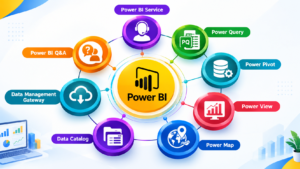
From Disconnected Files to Decision-Ready Data
A common challenge for organizations is that important information is spread across different systems. Sales records might be stored in SQL Server, product details in Excel, and business targets in separate spreadsheets.
Power BI can connect to supported sources and bring this information together for analysis.
Connecting to Business Data Sources
Power BI supports a variety of data sources, including:
- Microsoft Excel and CSV files
- SQL Server and Azure SQL Database
- SharePoint and supported cloud services
- Web data sources and APIs
- Other supported databases and business applications
Practical example: An online retailer wants to analyze monthly sales by product, customer, and region. Power BI can connect to the relevant datasets and prepare them for a consolidated sales report.
Related image placement: Add a screenshot illustrating Power BI data source connections.
Transform Untidy Datasets into Reliable Business Information
Raw data often contains duplicate rows, missing values, inconsistent date formats, and unnecessary columns. Analyzing this information without proper preparation can produce misleading results.
Power Query helps users prepare reliable datasets using repeatable transformation steps.
Common data preparation activities include:
- Removing duplicate records.
- Replacing or handling missing values.
- Correcting data types and date formats.
- Renaming and removing columns.
- Splitting and merging columns.
- Combining tables using Merge and Append.
- Creating conditional and custom columns.
For example, a sales dataset may contain product names written in different formats. Cleaning and standardizing these values helps ensure that products are grouped correctly in reports.
Related image placement: Add a Power Query Editor screenshot showing data cleaning and transformation.
Design a Strong Data Model for Meaningful Analysis
A well-structured data model is essential for building accurate and efficient Power BI reports.
Data modeling involves connecting related tables, defining relationships, and organizing information so that users can analyze business performance from different perspectives.
Important concepts include:
- Fact tables and dimension tables
- Primary keys and foreign keys
- One-to-many relationships
- Relationship cardinality and filter direction
- Star schema design
- Date tables and time-based analysis
For example, a sales fact table can be connected to Product, Customer, and Date dimension tables. This allows users to analyze sales by product category, customer segment, month, or year.
A carefully designed model also makes DAX calculations easier to maintain and improves the reliability of business reporting.
Unlock Business Metrics with DAX Calculations
Business users often need more than simple totals. They may want to understand profit margins, monthly growth, target achievement, and year-over-year performance.
DAX helps Power BI developers translate these requirements into analytical calculations.
Consider the following example:
Total Sales =
SUM(Sales[SalesAmount])
This measure calculates total sales from the SalesAmount column.
A profit measure could be written as:
Total Profit =
SUM(Sales[Profit])
A profit margin measure could be written as:
Profit Margin % =
DIVIDE([Total Profit], [Total Sales], 0) * 100
These measures can be displayed in cards, charts, and tables.
Learners can also explore functions such as CALCULATE(), DISTINCTCOUNT(), COUNTROWS(), IF(), and time intelligence functions for more advanced reporting requirements.
Related image placement: Add a Power BI screenshot showing DAX formulas and calculated business metrics.
Build Interactive Reports That Tell a Clear Business Story
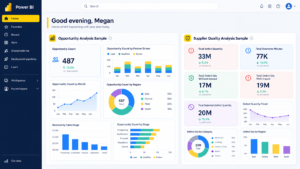
A professional Power BI report should do more than display numbers. It should help users understand performance, identify patterns, and explore the reasons behind changes.
Power BI provides a wide range of visualization options, including:
- Bar and column charts for comparisons
- Line charts for trends over time
- Cards for important KPIs
- Tables and matrix visuals for detailed information
- Maps for geographic analysis
- Slicers for interactive filtering
- Drill-through pages for detailed investigation
Developers can also use tooltips, bookmarks, and cross-filtering to improve the report experience.
For example, a sales manager can select a particular region and immediately explore its revenue, profit, product performance, and monthly trends.
Effective dashboard design emphasizes clear layouts, relevant metrics, consistent formatting, and appropriate visualizations.
Publish Reports and Deliver Insights to Business Teams
After completing report development in Power BI Desktop, users can publish reports to Power BI Service and make them available to authorized stakeholders.
A report delivery workflow may include:
- Publishing reports to an appropriate workspace.
- Configuring data refresh where supported.
- Managing sharing permissions and access.
- Applying row-level security when required.
- Monitoring data quality and report performance.
- Updating reports as business requirements evolve.
Depending on the data source and requirements, Power BI solutions can use scheduled refresh, DirectQuery, or supported real-time data capabilities.
Understanding these options helps learners develop solutions that are suitable for different business environments.
What You Will Learn in a Practical Power BI Course
A structured Power BI course should guide learners through the complete process of developing Business Intelligence reports.
Key learning areas include:
- Power BI fundamentals and data connectivity
- Power Query and data transformation
- Data modeling and relationships
- DAX formulas and measures
- Data visualization and dashboard development
- Interactive reports, slicers, and drill-through
- KPI reporting and time-based analysis
- Power BI Service and report publishing
- Data refresh and report security
- Real-world projects and scenario-based exercises
- Interview preparation and practical assignments
The goal is to develop practical knowledge that can be applied to real reporting and analytics requirements.
Who Can Benefit from Learning Power BI?
Power BI is useful for learners from different educational and professional backgrounds.
Freshers and Graduates: Build foundational data analysis, visualization, and reporting skills.
Working Professionals: Improve reporting processes and present business performance more effectively.
Excel Users: Progress from spreadsheet-based reporting to interactive Business Intelligence solutions.
Data Analysts: Strengthen DAX, data modeling, visualization, and dashboard development skills.
Career-Gap Candidates: Refresh technical knowledge through structured learning and practical projects.
Aspiring BI Developers: Build a foundation in data preparation, modeling, reporting, and Power BI Service.
Basic computer skills and an interest in working with data are helpful starting points. SQL and Excel knowledge can provide an additional advantage.
Career Paths You Can Explore with Power BI Skills
Power BI skills can support several career paths, depending on your experience and broader technical knowledge.
Potential roles include:
- Power BI Developer
- Data Analyst
- Business Intelligence Developer
- Reporting Analyst
- Business Analyst
- MIS Analyst
- Data Visualization Developer
Employers may also look for SQL, Excel, data warehousing, business communication, and analytical problem-solving skills.
Learning Power BI can strengthen your technical profile, while practical projects and interview preparation can help demonstrate your abilities to prospective employers.
Why Choose SQL School for Power BI Training?
SQL School Training Institute, Hyderabad, focuses on practical technical learning and real-world data scenarios.
The Power BI learning experience can include hands-on exercises, data transformation, data modeling, DAX calculations, interactive dashboard development, and project-based practice.
Training support may include:
- Practical assignments and exercises
- Real-world Business Intelligence scenarios
- Dashboard and report development practice
- Interview preparation
- Resume guidance
- Placement assistance
The aim is to help learners understand how to transform raw data into reliable reports and meaningful business insights.
Frequently Asked Questions About Power BI
Can a beginner learn Power BI?
Yes. Beginners can start with data connections, Power Query, basic visualizations, and data modeling before moving to DAX and advanced reporting.
Is programming required to use Power BI?
Extensive programming knowledge is not necessary to begin. Power Query provides a graphical interface for many transformations, while DAX supports analytical calculations. SQL is useful for database-related work.
How does Power BI help Data Analysts?
Power BI helps Data Analysts prepare datasets, analyze trends, calculate KPIs, create interactive reports, and communicate findings to business stakeholders.
Can Power BI connect to SQL Server?
Yes. Power BI supports SQL Server connectivity, allowing users to analyze database information and build reports based on business data.
What is the difference between a report and a dashboard?
A Power BI report can contain multiple pages with interactive visuals. A dashboard in Power BI Service is generally a single-page canvas that displays pinned visual tiles from reports or other supported sources.
Can Power BI support real-time analytics?
Yes, depending on the architecture and data source. Power BI supports several approaches, including DirectQuery and supported real-time capabilities. The appropriate design depends on data freshness, performance, and licensing requirements.
Conclusion: Turn Data into Your Next Business Advantage
Power BI enables businesses to move beyond static reports and develop interactive Business Intelligence solutions that support informed decisions.
By learning data transformation, data modeling, DAX, visualization, and report publishing, you can develop the skills to build dashboards that communicate business performance clearly.
Whether you are a fresher, working professional, Excel user, or aspiring Data Analyst, practical Power BI training can help you strengthen your data analytics and reporting capabilities.
Power BI Training: https://sqlschool.com/powerbi-training/
Power BI Curriculum: Click Here
Ready to build your Power BI skills?
Join SQL School Training Institute, Hyderabad, and learn to transform raw data into meaningful insights through hands-on practice and real-world Business Intelligence projects.
Contact: +91 9666440801 / +91 9951440801
Website: https://sqlschool.com/
Take the next step toward mastering interactive dashboards, professional reporting, and data-driven decision-making.