How to Create ADLS Gen2 Storage Account in Azure – Complete Practical Tutorial
Introduction: Getting Started with Azure Data Lake Storage Gen2
In today’s data-driven world, organizations generate enormous amounts of data from applications, databases, websites, IoT devices, and business systems. Managing and storing this data efficiently is essential for modern data analytics and business intelligence.
Microsoft Azure provides Azure Data Lake Storage Gen2 (ADLS Gen2) to help organizations store, organize, and manage large volumes of structured, semi-structured, and unstructured data.
ADLS Gen2 is built on Azure Blob Storage and provides additional capabilities such as hierarchical namespace, directory management, and access control lists (ACLs).
It is widely used in modern data engineering solutions involving Azure Data Factory, Azure Databricks, Azure Synapse Analytics, and Microsoft Fabric.
In this practical tutorial, we will explore how to create an Azure Data Lake Storage Gen2 account from the Azure Portal, configure the required settings, enable Hierarchical Namespace, create containers, organize directories, and upload sample files.
By the end of this guide, you will understand the complete process of setting up an ADLS Gen2 storage account.
Understanding the Role of ADLS Gen2 in Cloud Data Management
Azure Data Lake Storage Gen2 is a cloud-based data storage service designed for big data analytics and enterprise data engineering workloads.
It provides a centralized storage platform where organizations can store data before processing, transforming, and analyzing it.
Unlike traditional file storage systems, ADLS Gen2 supports large-scale data storage with directory-based organization.
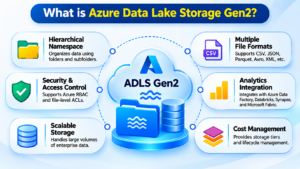
Important Capabilities of ADLS Gen2
- Hierarchical Namespace: Organizes data using folders and subfolders.
- Scalable Storage: Handles large volumes of enterprise data.
- Security and Access Control: Supports Azure RBAC and file-level ACLs.
- Analytics Integration: Integrates with Azure Databricks, Azure Data Factory, and other analytics services.
- Multiple File Formats: Supports CSV, JSON, Parquet, Avro, XML, and other formats.
- Hadoop Compatibility: Supports the Azure Blob File System (ABFS) driver.
- Cost Management: Provides storage tiers and lifecycle management capabilities.
Where ADLS Gen2 Fits in a Modern Data Engineering Project
ADLS Gen2 is commonly used as the storage foundation of an enterprise data platform.
Some practical scenarios include:
- Collecting data from SQL Server, Oracle, and other databases.
- Storing raw datasets from different business applications.
- Building centralized enterprise data lakes.
- Processing large datasets using Apache Spark and PySpark.
- Implementing Bronze, Silver, and Gold data layers.
- Supporting machine learning and AI workloads.
- Preparing analytical datasets for Power BI reporting.
For example, an e-commerce organization can store customer, product, order, and transaction data in ADLS Gen2 and process it using Azure Databricks.
Requirements to Prepare Before Creating an Azure Data Lake
Before starting the configuration, make sure you have:
- An active Microsoft Azure subscription.
- Access to the Azure Portal.
- Permission to create Azure Storage Accounts.
- An existing resource group or permission to create one.
- Basic knowledge of Azure storage and cloud resources.
If you do not have an Azure subscription, visit the official Microsoft Azure website to explore subscription options.
Step 1: Access the Azure Cloud Management Portal
First, open your preferred web browser and navigate to the Microsoft Azure Portal.
Portal URL: https://portal.azure.com/
Sign in using your Microsoft account or organizational Azure credentials.
After successful authentication, you will see the Azure Portal dashboard.
The dashboard provides access to various Azure services, including:
- Storage Accounts
- Virtual Machines
- Azure SQL Database
- Azure Data Factory
- Azure Databricks
- Microsoft Fabric
For this tutorial, we will work with Azure Storage Accounts.
Step 2: Open the Storage Account Creation Wizard
After entering the Azure Portal, follow these instructions:
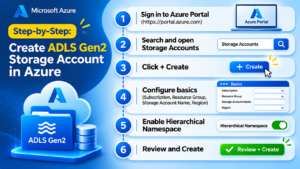
- Locate the search bar at the top of the portal.
- Enter Storage Accounts.
- Select Storage Accounts from the search results.
- Click the + Create button.
Azure will display the Create a Storage Account configuration page.
This wizard allows you to configure the subscription, resource group, storage account name, region, performance, redundancy, and advanced storage settings.
Step 3: Define the Storage Account’s Basic Configuration
In the Basics tab, provide the required information.
Subscription
Choose the active Azure subscription where you want to create the storage account.
Resource Group
Select an existing resource group or create a new one.
For this demonstration, use:
Resource Group Name: RG_ADLS_GEN2
Storage Account Name
Enter a globally unique name for your storage account.
Example:
sqlschooladlsgen2
Remember:
- The name must contain only lowercase letters and numbers.
- It must be between 3 and 24 characters.
- It must be unique across Azure.
Region
Select the Azure region where you want to deploy your storage account.
Examples:
- Central India
- South India
- East US
- West Europe
Choose a region based on your application requirements, data residency needs, and service availability.
Performance
Select the storage performance option.
For a typical learning environment, choose:
Standard – General-purpose v2
This is a common choice for general-purpose ADLS Gen2 workloads.
Redundancy
Choose an appropriate data redundancy option.
For a basic practice environment, you can select:
Locally Redundant Storage (LRS)
LRS maintains multiple synchronous copies of your data within a single physical location in the primary region.
After completing the basic configuration, proceed to the Advanced tab.
Step 4: Activate Hierarchical Namespace for Data Lake Capabilities
This is one of the most important configurations when creating an ADLS Gen2 storage account.
Navigate to the Advanced tab.
Locate the Data Lake Storage section and find:
Enable hierarchical namespace
Select the checkbox to enable this option.
What Does Hierarchical Namespace Do?
Hierarchical Namespace (HNS) allows data to be organized using actual directories and subdirectories.
It provides file system-like operations such as:
- Creating directories.
- Renaming folders.
- Moving files.
- Managing directory structures.
- Applying file and directory-level access permissions.
For example, without a hierarchical namespace, folder structures are generally represented through blob naming conventions.
With HNS enabled, ADLS Gen2 supports native directory semantics, which are useful for big data processing workloads.
Important: Enabling HNS is an architectural decision. Once enabled, it cannot simply be disabled to return the account to a flat namespace.
After enabling HNS, review the remaining advanced settings.
Step 5: Review Security and Network Access Options
Azure provides several configuration options to help protect your storage account.
Review the following settings before deployment.
Secure Transfer
Keep secure transfer required enabled to ensure secure connections.
Minimum TLS Version
Use an appropriate supported TLS version, such as TLS 1.2 or later.
Anonymous Blob Access
Disable anonymous blob access unless your application specifically requires public access.
Networking Configuration
Choose the network connectivity option according to your requirements.
Available configurations may include:
- Public endpoint access.
- Restricted public network access.
- Private endpoint connectivity.
For production environments, consider using private endpoints, firewall rules, and appropriate network restrictions.
For a beginner’s practice environment, use a suitable configuration that allows your authorized client to connect.
Step 6: Validate the Configuration and Deploy the Resource
Once all the required configurations are completed, navigate to the Review + Create tab.
Verify the following details:
- Azure Subscription.
- Resource Group.
- Storage Account Name.
- Deployment Region.
- Performance Tier.
- Redundancy Option.
- Hierarchical Namespace Status.
- Security and Networking Settings.
After checking the configuration, click Create.
Azure will start deploying the storage account.
Wait until the deployment status shows successful completion.
Click Go to resource to open your newly created storage account.
Your ADLS Gen2 storage account is now ready!
Step 7: Confirm That Data Lake Features Are Enabled
After opening the newly deployed storage account, verify the configuration.
Follow these steps:
- Navigate to the Overview section.
- Review the storage account details.
- Open the Configuration section.
- Locate the Hierarchical Namespace setting.
- Confirm that it is enabled.
This verification helps ensure that your storage account supports ADLS Gen2 capabilities.
Step 8: Build Your First Data Container
A container is the top-level storage structure used to organize data within an Azure Storage Account.
In ADLS Gen2, a container acts as a file system.
To create a container:
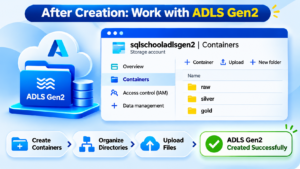
- Open your newly created storage account.
- Navigate to the Data Storage section.
- Select Containers.
- Click + Container.
- Enter the container name.
For example:
rawdata
- Select Private as the anonymous access level.
- Click Create.
Your first ADLS Gen2 container is now available.
You can create additional containers for different types of business data.
Examples:
- rawdata
- processeddata
- curateddata
Step 9: Organize Data Using Directories and Subdirectories
After creating a container, the next step is to organize your datasets.
Open the rawdata container and select the option to add a directory.
Create the following directory names:
- sales
- customers
- products
- transactions
These directories help organize data based on business requirements.
For example:
sqlschooladlsgen2
       |
       |--- rawdata
       |       |
       |       |--- sales
       |       |--- customers
       |       |--- products
       |       |--- transactions
       |
       |--- processeddata
       |
       |--- curateddata
This type of directory organization is useful when building enterprise data engineering solutions.
Step 10: Transfer Your First Dataset into ADLS Gen2
Now that the storage account, container, and directories are ready, let’s upload a sample dataset.
Follow these instructions:
- Open the required directory.
- Click the Upload option.
- Select a sample file from your computer.
- Choose a CSV, JSON, or TXT file.
- Review the upload settings.
- Click Upload.
Once the upload is completed, the file will appear inside the selected directory.
For example:
rawdata
    |
    |--- sales
    |      |
    |      |--- sales_data.csv
    |
    |--- customers
           |
           |--- customer_details.json
You have successfully uploaded your first dataset into Azure Data Lake Storage Gen2.
Exploring a Practical ADLS Gen2 Data Lake Structure
In real-world data engineering projects, developers often organize datasets into multiple layers.
One popular approach is the Medallion Architecture.
Bronze Layer – Raw Data Storage
The Bronze layer stores data in its original form after ingestion from different source systems.
Examples include SQL Server tables, CSV files, JSON files, and API data.
Silver Layer – Cleaned and Transformed Data
The Silver layer contains cleaned, validated, and transformed datasets.
Data quality checks and business transformation rules are applied at this stage.
Gold Layer – Business-Ready Data
The Gold layer contains curated datasets prepared for business intelligence, reporting, and analytical workloads.
Example structure:
ADLSGen2
    |
    |--- bronze
    |       |--- sales
    |       |--- customers
    |
    |--- silver
    |       |--- sales
    |       |--- customers
    |
    |--- gold
            |--- sales_summary
            |--- customer_analytics
This architecture is widely used in modern cloud data engineering solutions.
Connecting ADLS Gen2 with Other Azure Data Services
ADLS Gen2 becomes even more powerful when integrated with other Azure services.
Azure Data Factory
Azure Data Factory helps extract data from multiple sources and load it into ADLS Gen2 using data pipelines.
Azure Databricks
Azure Databricks uses Apache Spark and PySpark to read, transform, and process large datasets stored in ADLS Gen2.
Azure Synapse Analytics
Azure Synapse Analytics provides analytical capabilities for working with enterprise data.
Microsoft Fabric
Microsoft Fabric can connect to ADLS Gen2 using supported integration features such as OneLake shortcuts, allowing users to access external data lake storage.
These integrations help build end-to-end cloud data engineering pipelines.
Troubleshooting Common ADLS Gen2 Configuration Problems
While creating and accessing an ADLS Gen2 storage account, beginners may encounter some common errors.
Storage Account Name Is Not Available
Storage account names must be globally unique.
Solution: Try another name using lowercase letters and numbers.
Hierarchical Namespace Is Disabled
If HNS is not enabled, the storage account will not provide the native ADLS Gen2 capabilities.
Solution: Ensure that Enable Hierarchical Namespace is selected during account creation.
Authorization Failed While Uploading Files
This issue may occur when the signed-in user does not have the required data access permissions.
Solution: Check Azure RBAC assignments and assign an appropriate role, such as Storage Blob Data Contributor, when required.
Unable to Access a Container
This can happen because of network restrictions or insufficient permissions.
Solution: Verify network access, firewall settings, and storage data permissions.
Directory Access Permission Issues
ADLS Gen2 supports directory and file-level access control lists.
Solution: Review the ACL entries and verify that the user has the required execute and read/write permissions on the relevant paths.
Frequently Asked Questions About Azure Data Lake Storage Gen2
1. What is the primary purpose of ADLS Gen2?
ADLS Gen2 is used to store and manage large volumes of structured, semi-structured, and unstructured data for analytics and big data processing.
2. How is ADLS Gen2 different from regular Blob Storage?
ADLS Gen2 builds on Azure Blob Storage and adds hierarchical namespace, directory operations, and file-level access control capabilities.
3. What is the use of Hierarchical Namespace?
Hierarchical Namespace provides directory-based data organization and efficient file system operations such as directory renaming and deletion.
4. Can we integrate ADLS Gen2 with Azure Databricks?
Yes. Azure Databricks can connect to ADLS Gen2 to read, write, and transform datasets using Apache Spark and PySpark.
5. What is the purpose of a container in ADLS Gen2?
A container acts as the top-level file system within the storage account. It helps organize directories and files.
Conclusion: Your First Step Toward Building an Azure Data Lake
Azure Data Lake Storage Gen2 is an important component of modern cloud data engineering. It provides scalable storage, hierarchical data organization, and integration with powerful Azure analytics services.
In this tutorial, we covered the complete process of creating an ADLS Gen2 storage account, configuring Hierarchical Namespace, creating containers, organizing directories, and uploading sample datasets.
With this foundation, you can move forward and explore practical data engineering scenarios using Azure Data Factory, Azure Databricks, PySpark, and Microsoft Fabric.
Start your Azure Data Engineering journey with SQL School Training Institute!
Learn SQL, Azure Data Engineering, Azure Data Factory, Azure Databricks, PySpark, and Microsoft Fabric through 100% hands-on training and real-time projects.
Website: https://sqlschool.com/
Contact: +91 9666440801 | +91 9951440801
100% Practical Training | Real-Time Projects | Resume Guidance | Interview Preparation | 100% Placement Assistance
#ADLSGen2 #AzureDataLake #AzureDataEngineering #MicrosoftAzure #AzureStorage #AzureTutorial #DataEngineering #SQLSchool

