
How to Unblock RDP File in Windows – Step-by-Step Guide
Introduction: Why Does Windows Block RDP Files?
Remote Desktop Protocol (RDP) is a Microsoft technology that allows users to connect to another computer remotely over a network or the internet. It is commonly used by IT professionals, Database Administrators (DBAs), developers, and system administrators to access remote servers and manage Windows environments.
When you download an RDP file from the internet, receive it through email, or copy it from another computer, Windows may block the file for security reasons.
You might encounter security warnings such as:
- This file came from another computer and might be blocked to help protect this computer.
- The publisher of this remote connection cannot be identified.
- Windows cannot open this file because of security restrictions.
These restrictions are designed to protect your computer from potentially unsafe files and unauthorized remote connections.
In this tutorial, you will learn how to unblock an RDP file in Windows 10 and Windows 11 using different methods, including File Properties, PowerShell, and Windows security settings.
What Is an RDP File in Windows?
An RDP file is a configuration file used by the Remote Desktop Connection application (mstsc.exe) to establish a remote connection to another Windows computer or server.
Instead of manually entering connection details every time, users can save them in an RDP file and open the file whenever they need to connect.
An RDP file can contain configuration details such as:
- Remote computer name or IP address.
- Remote Desktop port number.
- Screen resolution and display settings.
- Audio and printer redirection preferences.
- Local drive and clipboard redirection settings.
- Authentication and connection preferences.
Example:
An RDP file might contain the following configuration:
full address:s:192.168.1.100
prompt for credentials:i:1
screen mode id:i:2
use multimon:i:0
When you open this file, Windows Remote Desktop Connection uses the saved settings to initiate the remote session.
Why Does Windows Block Downloaded RDP Files?
Windows uses security mechanisms to identify files downloaded from the internet or received from external sources.
When a file is downloaded, Windows may attach additional security information called Mark of the Web (MOTW). This information helps Windows identify files that originated from potentially untrusted locations.
Common reasons an RDP file gets blocked include:
- The RDP file was downloaded from a website.
- The file was received as an email attachment.
- The file was copied from another computer.
- Windows identified the file as coming from an untrusted source.
- Organizational security policies restrict the opening of unsigned or unknown RDP files.
Understanding the reason for the restriction helps you select the correct unblocking method.
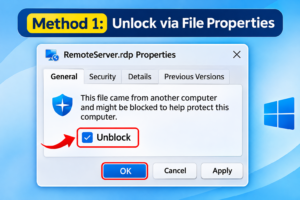
Method 1: Unblock an RDP File Using File Properties
This is the easiest method to unblock an RDP file in Windows. You do not need to execute any commands or change advanced system settings.
Follow these steps:
Step 1: Locate the RDP File
Open File Explorer and navigate to the folder where your RDP file is stored.
For example:
C:\Users\YourUsername\DownloadsStep 2: Open File Properties
Right-click the downloaded RDP file and select Properties.
Step 3: Find the Security Section
Under the General tab, scroll down to the Security section.
If Windows has blocked the file, you may see a message similar to:
“This file came from another computer and might be blocked to help protect this computer.”
Step 4: Select the Unblock Option
Locate the Unblock checkbox near the security message.
Select the checkbox to remove the downloaded-file security block.
Step 5: Apply the Changes
Click Apply and then OK to save the changes.
Step 6: Open the RDP File
Double-click the RDP file to launch Remote Desktop Connection.
Review the connection details and security warnings before proceeding.
Result: Windows will no longer treat the file as blocked by the downloaded-file security marker.
Note: The Unblock checkbox may not appear if the file is not marked as blocked or if another security policy is preventing access.
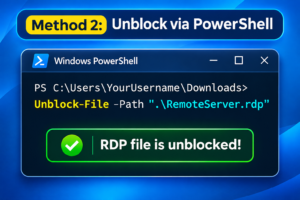
Method 2: Unblock an RDP File Using PowerShell
If you cannot find the Unblock option in File Properties or prefer using command-line tools, you can use Windows PowerShell.
PowerShell provides a built-in command called Unblock-File that removes the downloaded-file security information from a file.
Step 1: Open Windows PowerShell
- Click the Windows Start button.
- Search for PowerShell.
- Open Windows PowerShell.
Administrator access is generally not required when you have permission to modify the file.
Step 2: Navigate to the Download Folder
Execute the following command:
cd C:\Users\YourUsername\DownloadsReplace YourUsername with your actual Windows username.
Step 3: Execute the Unblock-File Command
Run the following command:
Unblock-File -Path ".\RemoteServer.rdp"Replace RemoteServer.rdp with the actual name of your RDP file.
Step 4: Verify the File
You can check whether the downloaded-file security marker remains by executing:
Get-Item ".\RemoteServer.rdp" -Stream Zone.IdentifierIf the security stream no longer exists, the downloaded-file marker has been removed.
Result: The RDP file is unblocked using PowerShell.
Method 3: Unblock Multiple RDP Files Using PowerShell
If you have downloaded multiple RDP files and want to unblock them together, PowerShell can help automate the process.
Step 1: Open PowerShell
Open Windows PowerShell from the Start menu.
Step 2: Navigate to the Folder
Execute:
cd C:\Users\YourUsername\DownloadsStep 3: Unblock All RDP Files
Run the following command:
Get-ChildItem -Path . -Filter "*.rdp" -File | Unblock-FileThis command identifies all RDP files in the current folder and removes their downloaded-file security markers.
Step 4: Verify the Files
Open File Explorer and check the file properties of the required RDP files.
Result: All matching RDP files in the selected folder are processed.
Important: Use this command only when you have verified that every RDP file in the folder comes from a trusted source.
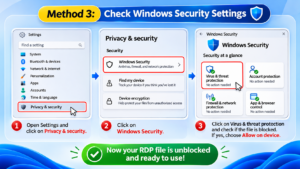
Method 4: Check Windows Remote Desktop Security Settings
Sometimes, unblocking an RDP file is not enough. Windows may still display security warnings or prevent the connection because of Remote Desktop security policies.
Windows Remote Desktop Connection includes security controls that determine which RDP files users are allowed to open.
To troubleshoot this situation:
- Press Windows + R.
- Type gpedit.msc.
- Press Enter to open Local Group Policy Editor.
- Navigate to the applicable Remote Desktop Connection client policies under Remote Desktop Services.
- Review the policies controlling signed RDP files and files from unknown publishers.
Important policy settings include:
- Allow .rdp files from valid publishers and user’s default .rdp settings.
- Allow .rdp files from unknown publishers.
These policies can restrict unsigned RDP files or connections depending on the organization’s security configuration.
Do not change organization-managed security policies without approval from your IT administrator.
Note: Local Group Policy Editor may not be available in every Windows edition. Policy changes may also be overridden by domain or organizational policies.
Method 5: Open an RDP File After Unblocking
After successfully unblocking the file, follow these steps to establish your remote connection.
Step 1: Locate the unblocked RDP file.
Step 2: Double-click the file.
Step 3: Windows will launch Remote Desktop Connection.
Step 4: Review the remote computer name or IP address.
Step 5: Review any security dialog and the requested resource redirection permissions.
Step 6: Click Connect if you trust the destination and approve the requested settings.
Step 7: Enter your remote computer credentials when prompted.
Result: You should be able to establish the Remote Desktop connection if the destination is reachable and the required permissions and network settings are configured.
Common Problems When Unblocking RDP Files
Even after removing the downloaded-file security marker, you may encounter other problems while opening an RDP file.
Here are some common issues and their troubleshooting approaches.
1. Unblock Option Is Missing
Reason: The file may not contain a downloaded-file security marker.
Solution: Check whether the file is already unblocked. If appropriate, use PowerShell to inspect the Zone.Identifier stream.
2. Windows Still Displays a Security Warning
Reason: The warning may be related to an unknown publisher, an unsigned RDP file, or a Remote Desktop security policy.
Solution: Verify the file source and remote computer address. Review the security dialog and consult your IT administrator if organizational policies are involved.
3. Remote Desktop Connection Is Not Opening
Reason: The Remote Desktop client may be unavailable, the file association may be incorrect, or the RDP configuration may be invalid.
Solution: Press Windows + R, type mstsc, and press Enter to check whether Remote Desktop Connection opens. You can also try opening the RDP file through the Remote Desktop Connection application.
4. Remote Computer Cannot Be Reached
Reason: The destination computer may be offline, network connectivity may be unavailable, or Remote Desktop access may not be configured.
Solution: Verify the computer name or IP address, network connectivity, firewall configuration, and Remote Desktop access permissions.
5. Your Organization Blocks RDP Files
Reason: Your organization may have Group Policy or other endpoint security controls that restrict unsigned or untrusted RDP files.
Solution: Contact your system administrator to review the applicable security policies. Do not bypass company security restrictions.
Important Security Tips Before Opening RDP Files
RDP files can contain connection details and settings that affect your computer’s security.
Before unblocking an RDP file, follow these precautions:
- Download RDP files only from trusted websites or authorized administrators.
- Verify the remote computer name or IP address.
- Scan downloaded files using Microsoft Defender Antivirus or your approved security software.
- Avoid opening unexpected RDP attachments received through email.
- Review clipboard, drive, printer, and other local resource redirection permissions.
- Do not disable Windows security protections just to open an RDP file.
- Contact your IT administrator if the file is blocked by organizational policies.
Security Recommendation: Unblock only RDP files that you trust and have verified. Removing the downloaded-file security marker does not make an unsafe RDP file safe.
Frequently Asked Questions (FAQs) – How to Unblock RDP Files in Windows
1. How do I unblock an RDP file in Windows 11?
Right-click the RDP file, select Properties, open the General tab, select the Unblock checkbox under Security, and click Apply and OK.
2. How do I unblock an RDP file in Windows 10?
Locate the downloaded RDP file, right-click it, select Properties, and select Unblock if the security option is available. Click Apply and OK.
3. Can I unblock an RDP file using PowerShell?
Yes. Execute the following command:
Unblock-File -Path ".\RemoteServer.rdp"This removes the downloaded-file security marker from the specified file.
4. Why is the Unblock option missing from RDP file properties?
The option may be missing because the file does not have a downloaded-file security marker or Windows does not identify it as blocked.
5. Is it safe to unblock an RDP file?
It is safe only when you trust the source and have verified the remote connection details. Unblocking a file removes a security restriction but does not verify that the file is legitimate.
6. Does unblocking an RDP file disable Windows security?
No. Unblocking an RDP file removes its downloaded-file security marker. Other Windows security features, antivirus protection, publisher checks, and organizational policies may still apply.
Conclusion: Access Remote Systems Securely Using RDP
Unblocking an RDP file in Windows is a simple process when you understand the security restrictions applied to downloaded files.
You can use File Properties for a quick solution, PowerShell for command-line unblocking, or Windows security policies to investigate organization-level restrictions.
However, always verify the source of an RDP file and the destination computer before establishing a remote connection. Security warnings should never be ignored without understanding their purpose.
If you work with Windows Server administration, SQL Server environments, or remote infrastructure, understanding RDP configuration and security is an important practical skill.
At SQL School Training Institute, we provide practical, hands-on training in SQL Server, SQL DBA, Azure Data Engineering, Power BI, and Microsoft Fabric.
Learn through practical sessions, real-time projects, assignments, and industry-oriented training.
For course details and free demo sessions, contact us:
Website: https://sqlschool.com/
Phone: +91 9666440801 / +91 9951440801
#UnblockRDPFile #RDPFile #RemoteDesktop #RemoteDesktopProtocol #Windows11 #Windows10 #PowerShell #RDPConnection #WindowsServer #RemoteDesktopConnection #WindowsSecurity #RDPTroubleshooting #SystemAdministration #ITAdministration #WindowsTips #TechTutorial #ServerAdministration #MicrosoftWindows #SQLSchool #SQLDBA

