
SQL Server Backup Compression: Regular vs. Compressed Backup – Which Is Faster?
Introduction: Why Backup Speed Matters in SQL Server
Database backup is a critical responsibility of every SQL Server Database Administrator (DBA). Whether managing a small application database or a large enterprise database, maintaining reliable backups is essential for protecting business data and ensuring disaster recovery.
However, as databases grow, backup operations can consume significant time, storage space, and system resources.
This raises an important question for SQL Server professionals:
Is a regular database backup faster than a compressed backup, or does backup compression improve performance?
SQL Server provides backup compression to reduce backup file sizes and optimize backup operations. While compressed backups can improve performance by reducing disk I/O, they also require additional CPU resources.
In this blog, we will explore how SQL Server backup compression works, compare regular and compressed backups, examine real-world performance scenarios, and demonstrate practical T-SQL commands.
By the end of this article, you will understand how to choose the right backup strategy for your SQL Server environment.
Understanding the Two Backup Approaches in SQL Server
SQL Server supports different backup configurations depending on the performance and storage requirements of your database environment.
The two approaches discussed in this article are:
- Regular backup without compression
- Compressed backup with compression enabled
Both approaches create database backups that can be used for recovery. The primary difference is how SQL Server processes and writes the backup data.
What Happens During a Regular Database Backup?
A regular backup is created without enabling backup compression.
SQL Server reads the database pages and writes the backup data to the specified destination without applying backup compression.
This approach requires less CPU processing for compression but typically produces larger backup files.
Regular backups may be useful in environments where CPU resources are limited and the backup destination can handle high data throughput.
How SQL Server Processes a Compressed Backup
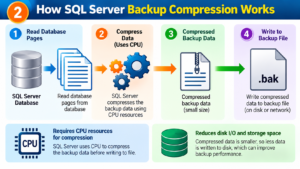
A compressed backup uses SQL Server’s backup compression feature to reduce the amount of data written to the backup destination.
SQL Server compresses the backup data before writing it to the backup file.
This reduces the amount of disk I/O and storage space required for the backup.
Compressed backups are particularly beneficial when:
- Database backup files are large.
- Backup storage capacity is limited.
- Disk write throughput is a bottleneck.
- Backups are transferred across a network.
- Backup windows are restricted.
Backup Compression Performance: What Makes One Backup Faster?
Backup performance is not determined by compression alone.
The actual speed depends on several factors, including CPU capacity, storage throughput, database characteristics, and the backup destination.
CPU Processing and Compression Overhead
Backup compression requires CPU resources to compress the backup data.
When SQL Server has sufficient CPU capacity, compression may improve overall backup performance by reducing the amount of data written to disk.
However, if CPU utilization is already high, compression can increase processing overhead and potentially slow down the backup operation.
Disk Throughput and Backup Destination Performance
Disk I/O is another major factor affecting backup performance.
During a regular backup, SQL Server writes a larger amount of data to the backup destination.
With compression enabled, the backup file is smaller, reducing the amount of data written.
This can improve backup performance when storage throughput is limited.
Database Content and Compression Ratio
Not all database data compresses equally.
For example:
- Text-based data may compress efficiently.
- Repeated character patterns may produce smaller backup files.
- Encrypted data may not compress significantly.
- Already-compressed data may show limited compression benefits.
The compression ratio directly affects how much data SQL Server needs to write to the backup destination.
SQL Server Backup Compression Comparison: Regular vs. Compressed
The following comparison highlights how both backup methods differ.
| Performance Factor | Regular Backup | Compressed Backup |
|---|---|---|
| CPU consumption | Generally lower | Generally higher |
| Backup file size | Usually larger | Usually smaller |
| Disk I/O | Usually higher | Usually lower |
| Backup duration | Depends on storage and CPU | Often shorter on I/O-bound systems |
| Restore processing | No backup decompression | Requires decompression |
| Storage requirements | Higher | Lower |
| Network transfer | More data transferred | Less data transferred |
| Best use case | CPU-limited environments with fast storage | I/O-limited environments |
Important: Compressed backups are not always faster. Their performance advantage depends on whether reducing I/O outweighs the additional CPU cost.
Practical T-SQL Demonstration: Creating a Regular Backup
Let’s begin by creating a regular full database backup.
Step 1: Execute the Regular Backup Command
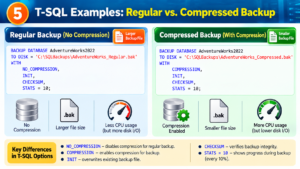
BACKUP DATABASE AdventureWorks2022
TO DISK = 'C:\SQLBackups\AdventureWorks_Regular.bak'
WITH
    NO_COMPRESSION,
    INIT,
    CHECKSUM,
    STATS = 10;
Explanation of the Backup Options
BACKUP DATABASE: Creates a database backup.TO DISK: Specifies the backup file location.NO_COMPRESSION: Disables backup compression.INIT: Overwrites the existing backup media.CHECKSUM: Requests backup checksum verification.STATS = 10: Displays progress at 10% intervals.
This command creates a regular full backup of the AdventureWorks2022 database.
Practical T-SQL Demonstration: Creating a Compressed Backup
Now let’s create a compressed backup of the same database.
Step 2: Execute the Compressed Backup Command
BACKUP DATABASE AdventureWorks2022
TO DISK = 'C:\SQLBackups\AdventureWorks_Compressed.bak'
WITH
    COMPRESSION,
    INIT,
    CHECKSUM,
    STATS = 10;
In this example, SQL Server applies backup compression before writing the backup data to the destination.
The resulting backup file will generally be smaller than the regular backup, depending on the data stored in the database.
Real-World Performance Example: A 100 GB Database
Consider a SQL Server database with approximately 100 GB of backup data.
The following example illustrates how compression can affect backup size and duration.
| Metric | Regular Backup | Compressed Backup |
|---|---|---|
| Backup data | 100 GB | 100 GB |
| Backup file size | 100 GB | 30 GB |
| Storage used | 100 GB | 30 GB |
| Data written | 100 GB | 30 GB |
The compressed backup in this example reduces the backup file size by approximately 70%.
This can significantly reduce disk I/O when the backup destination is the bottleneck.
The backup duration, however, depends on the CPU and storage throughput.
The values above are illustrative, not guaranteed results. Actual compression ratios and backup durations vary by database.
Measuring SQL Server Backup Performance Using Backup History
SQL Server maintains backup history in the msdb database.
The backupset table stores details about backup operations, including backup size, compressed backup size, and backup duration.
Step 3: Compare Backup Size and Duration
SELECT
    database_name,
    backup_start_date,
    backup_finish_date,

    backup_size / 1024.0 / 1024
        AS BackupSizeMB,

    compressed_backup_size / 1024.0 / 1024
        AS CompressedBackupSizeMB,

    CAST(
        backup_size * 1.0 /
        NULLIF(compressed_backup_size, 0)
        AS DECIMAL(10,2)
    ) AS CompressionRatio,

    DATEDIFF(
        SECOND,
        backup_start_date,
        backup_finish_date
    ) AS BackupDurationSeconds

FROM msdb.dbo.backupset

WHERE type = 'D'

ORDER BY backup_finish_date DESC;
Step 4: Analyze the Results
The query helps identify:
- Backup file size
- Compressed backup size
- Compression ratio
- Backup start and finish times
- Backup duration
A higher compression ratio generally indicates that the backup data was reduced more effectively.
Use this information to evaluate backup performance over time and identify opportunities for improvement.
SQL Server 2025 Backup Compression: Exploring ZSTD
SQL Server 2025 introduces ZSTD as a backup compression algorithm.
ZSTD provides an additional option for balancing backup size, compression performance, and CPU utilization.
Creating a ZSTD Compressed Backup
BACKUP DATABASE AdventureWorks2022
TO DISK = 'C:\SQLBackups\AdventureWorks_ZSTD.bak'
WITH
    COMPRESSION
    (
        ALGORITHM = ZSTD,
        LEVEL = MEDIUM
    ),
    INIT,
    STATS = 10;
The compression level controls the compression behavior.
Higher compression levels may reduce the backup file size further, but can increase CPU processing and backup duration.
Choose the appropriate compression configuration based on the database workload and available system resources.
Backup Compression and Restore Performance: What DBAs Should Know
Backup performance is only one part of a successful database recovery strategy.
A DBA must also consider how quickly the database can be restored during a disaster recovery event.
Does Compression Make Restore Operations Faster?
Compressed backups require decompression during restore.
This introduces additional CPU processing.
However, because the backup file is smaller, SQL Server may need to read fewer bytes from the backup destination.
As a result, restore operations can be faster in some environments, especially when storage or network I/O is limited.
In other environments, decompression overhead may increase restore duration.
Why Restore Testing Is Important
A successful backup operation does not guarantee that your database can be recovered within the required time.
DBAs should regularly test:
- Full database restore
- Differential backup restore
- Transaction log restore
- Recovery time
- Backup integrity
This helps ensure that your backup strategy meets the required Recovery Time Objective (RTO) and Recovery Point Objective (RPO).
SQL Server DBA Best Practices for Backup Compression
Selecting the right backup configuration requires evaluating your database workload and infrastructure.
1. Evaluate CPU and I/O Bottlenecks
Monitor CPU utilization and disk throughput during backup operations.
If the backup destination is the bottleneck, compression may improve performance.
If CPU is the bottleneck, regular backups may perform better.
2. Use Backup Compression for Large Databases
Compressed backups can reduce storage requirements and improve backup efficiency for large databases.
3. Maintain a Consistent Backup Strategy
Use an appropriate combination of full, differential, and transaction log backups based on business recovery requirements.
4. Test Backups Before Production Implementation
Compare regular and compressed backups in a controlled environment before applying configuration changes to production databases.
5. Monitor Backup History Regularly
Track backup duration, backup size, compression ratio, and backup failures.
6. Validate Backup Integrity
Use backup checksums and restore testing to improve confidence in backup reliability.
Frequently Asked Questions About SQL Server Backup Compression
Is SQL Server compressed backup always faster?
No. Compressed backups are often faster when disk I/O or network throughput is the bottleneck. Regular backups may be faster when CPU resources are limited and storage throughput is high.
Does SQL Server backup compression reduce database size?
No. Backup compression reduces the size of the backup file, not the actual database data files.
Does backup compression increase CPU usage?
Yes. SQL Server uses additional CPU resources to compress backup data.
Can I restore a compressed SQL Server backup?
Yes. SQL Server supports restoring compressed backups and automatically handles the decompression required during restore.
Should I enable backup compression for all SQL Server databases?
Not necessarily. Evaluate database size, CPU utilization, storage performance, and recovery requirements before deciding.
Is backup compression available for full, differential, and transaction log backups?
Yes. SQL Server supports backup compression for full, differential, and transaction log backups.
Final Thoughts: Choosing the Right Backup Strategy
SQL Server backup compression is an effective way to reduce backup storage, minimize I/O, and potentially improve backup performance.
For databases with limited storage throughput, compressed backups often provide significant benefits.
For environments with limited CPU resources and high-speed storage, regular backups may be a better choice.
The best backup strategy is the one that balances performance, storage efficiency, and recovery requirements.
Test both approaches in your SQL Server environment, compare the results, and choose the configuration that meets your organization’s backup and disaster recovery goals.
Learn SQL Server DBA with Real-Time Practical Training
Want to learn SQL Server backup and restore operations, database administration, performance tuning, and real-time DBA concepts?
SQL School Training Institute provides practical SQL Server DBA training with hands-on exercises, real-time scenarios, and interactive sessions.
Learn from Mr. Sai Phanindra, Founder & Trainer, with 19+ years of industry expertise.
Visit: https://sqlschool.com/
Contact: +91 9666440801 | +91 9951440801
#SQLServer #SQLServerDBA #SQLServerBackup #BackupCompression #SQLServerPerformance #SQLServer2025 #SQLDBA #DatabaseAdministration #BackupAndRestore #SQLSchool #SQLServerTraining #DatabaseBackup