
Build Your Databricks Environment: A Hands-On Configuration Tutorial
Introduction
Databricks is a powerful cloud-based data intelligence platform used for data engineering, data analytics, machine learning, and AI workloads. It provides a unified environment where developers and data engineers can process large volumes of data using Apache Spark, Python, SQL, and other technologies.
Before developing data pipelines or working with real-time data, it is important to configure your Databricks environment properly.
In this blog, we will explain how to configure Databricks step by step, including creating a workspace, configuring compute resources, creating notebooks, setting up Unity Catalog, and executing your first PySpark program.
Whether you are an aspiring Data Engineer, Azure Data Engineer, or Databricks Developer, this tutorial will help you build your Databricks practice environment.
What is Databricks?
Databricks is a unified data and AI platform built around Apache Spark. It enables organizations to process, transform, analyze, and manage large datasets.
It provides several important capabilities:
- Data Engineering: Build and manage scalable ETL and ELT pipelines.
- Data Analytics: Analyze structured and unstructured data.
- Machine Learning: Develop and deploy machine learning solutions.
- Data Governance: Manage data access and security using Unity Catalog.
- Lakehouse Architecture: Combine data lake and data warehouse capabilities.
- AI Integration: Develop AI-powered applications and intelligent data solutions.
Prerequisites Before Configuring Databricks
Before starting the configuration, make sure you have the following:
- A valid Databricks account.
- Access to a supported cloud platform such as Microsoft Azure, AWS, or Google Cloud.
- An active Databricks workspace or permission to create one.
- A supported web browser such as Google Chrome or Microsoft Edge.
- Required permissions to configure workspace and compute resources.
- A basic understanding of Python, SQL, and data engineering concepts.
Note: Workspace creation and billing requirements depend on your cloud provider and subscription. Some features require specific Databricks plans and administrator permissions.
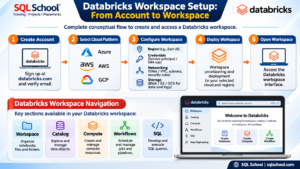
Step 1: Create a Databricks Account
To begin, visit the official Databricks website.
Website: https://www.databricks.com/
- Open the official Databricks website.
- Click the option to get started.
- Register using your business or personal email address.
- Complete the required account verification.
- Sign in to the Databricks account.
- Select the appropriate cloud platform and available onboarding option.
After successful registration, you can proceed with creating or accessing your Databricks workspace.
Step 2: Create a Databricks Workspace
A Databricks workspace is a collaborative environment where users create notebooks, execute queries, develop data pipelines, and manage workloads.
Follow these steps:
- Sign in to the Databricks account console.
- Navigate to the Workspaces section.
- Click Create Workspace, if your account and cloud setup allow it.
- Enter a meaningful workspace name.
Example: SQLSchool_Databricks_Workspace
- Select the appropriate cloud region.
- Configure the required cloud credentials, networking, and storage settings.
- Review the configuration.
- Click Create Workspace.
Once the workspace deployment is complete, open it to access the Databricks workspace interface.
Important: The workspace creation process differs between Azure Databricks, Databricks on AWS, and Databricks on Google Cloud.
Step 3: Understand the Databricks Workspace Interface
After opening the workspace, you will find different sections used for development and administration.
Important workspace components include:
- Workspace: Organize notebooks, files, and folders.
- Catalog: Explore and manage data objects.
- Compute: Create and manage compute resources.
- Workflows: Schedule and manage jobs and pipelines.
- SQL: Develop and execute SQL queries.
- Data Engineering: Build and manage data processing workflows.
Understanding these components helps you work efficiently within the Databricks environment.
Step 4: Configure Databricks Compute
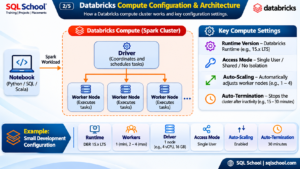
Compute resources provide the processing power required to execute notebooks, SQL queries, and data engineering workloads.
Follow these steps:
- Open your Databricks workspace.
- Navigate to the Compute section.
- Select the option to create compute.
- Enter a compute name.
Example: SQLSchool_Development_Cluster
- Select the appropriate Databricks Runtime version.
- Choose the compute type based on your workload.
- Configure the worker and driver resources.
- Review the auto-termination settings.
- Click Create.
After the compute resource becomes available, you can attach notebooks and execute programs.
Important Configuration Settings:
- Databricks Runtime Version
- Compute Type
- Driver Node
- Worker Nodes
- Auto-Scaling
- Auto-Termination
- Access Mode
For beginners, start with a small development configuration and increase resources only when required. Compute availability and configuration options depend on your workspace, cloud provider, and subscription.
Step 5: Create a Databricks Notebook
A notebook is an interactive development environment used to write and execute Python, SQL, Scala, and other supported code.
To create a notebook:
- Navigate to the Workspace section.
- Click Create.
- Select Notebook.
- Enter the notebook name.
Example: SQLSchool_Databricks_Practice
- Select Python as the default language.
- Attach the notebook to your configured compute.
- Start executing commands.
You can now use the notebook to practise Python, PySpark, and SQL operations.
Step 6: Execute Your First PySpark Program
After creating the notebook, execute your first PySpark program to verify that the environment is working correctly.
Example 1: Display a Message
print("Welcome to SQL School Databricks Training!")Example 2: Create a PySpark DataFrame
data = [
    (1, "Rahul", "Data Engineer"),
    (2, "Priya", "Data Analyst"),
    (3, "Arjun", "Databricks Developer")
]

columns = ["ID", "Name", "Role"]

df = spark.createDataFrame(data, columns)

df.show()
Expected Output:
| ID | Name | Role |
|---|---|---|
| 1 | Rahul | Data Engineer |
| 2 | Priya | Data Analyst |
| 3 | Arjun | Databricks Developer |
If the output is displayed successfully, your Databricks compute and notebook environment are working.
Step 7: Configure Unity Catalog
Unity Catalog is Databricks’ centralized data governance solution. It helps manage data access, permissions, and governance across workspaces.
Its main components include:
- Metastore
- Catalog
- Schema
- Tables
- Views
- Volumes
- Functions
To work with Unity Catalog:
- Verify that your workspace is enabled for Unity Catalog.
- Ensure the required metastore is available.
- Confirm that you have the required permissions.
- Open the Catalog Explorer.
- Create or access an existing catalog.
- Create a schema inside the catalog.
- Configure the required access permissions.
Example SQL Commands:
CREATE CATALOG IF NOT EXISTS SQLSchool;

USE CATALOG SQLSchool;

CREATE SCHEMA IF NOT EXISTS Training;

USE SCHEMA Training;

CREATE TABLE IF NOT EXISTS StudentDetails
(
    StudentID INT,
    StudentName STRING,
    CourseName STRING
);
You can now use the catalog and schema to organize your training datasets.
Note: Unity Catalog setup requires the appropriate workspace configuration and permissions. Some initial setup tasks require account administrator access.
Step 8: Verify Your Databricks Configuration
After completing the setup, verify that all the components are working correctly.
Use the following checklist:
- Databricks account created successfully.
- Workspace created and accessible.
- Compute resources configured and running.
- Notebook created successfully.
- PySpark program executed without errors.
- Unity Catalog access verified.
- Catalog and schema created successfully.
- SQL queries executed successfully.
If all these steps are completed, your Databricks environment is ready for practical data engineering exercises.
Step 9: Common Databricks Configuration Issues and Solutions
During the configuration process, beginners may encounter some common issues.
1. Unable to Create Compute
Possible reasons:
- Insufficient permissions.
- Compute resource limitations.
- Subscription or cloud configuration issues.
Solution: Verify your workspace permissions, compute availability, and cloud subscription settings.
2. Notebook Execution Failed
Possible reasons:
- Compute is not running.
- Notebook is not attached to compute.
- Incorrect code or unsupported runtime.
Solution: Start the compute resource, attach the notebook, and verify the code.
3. Unity Catalog Permission Denied
Possible reasons:
- Missing catalog privileges.
- Incorrect workspace configuration.
- Insufficient administrator permissions.
Solution: Contact the workspace or account administrator to verify the metastore and required privileges.
4. Unexpected Compute Charges
Possible reasons:
- Compute resources left running.
- Large compute configurations.
- Unnecessary workloads.
Solution: Configure auto-termination, monitor usage, and stop compute resources when they are not required.
Practical Exercises After Databricks Configuration
Once your Databricks environment is ready, practise the following assignments:
- Create a Databricks workspace and configure compute resources.
- Create a Python notebook and execute basic Python programs.
- Create a PySpark DataFrame using sample employee data.
- Perform filtering, sorting, and aggregation using PySpark.
- Create a catalog and schema using Unity Catalog.
- Create tables and execute SQL queries.
- Import a CSV file and perform data transformations.
- Build a simple ETL pipeline using PySpark.
These exercises help you understand how Databricks is used in real-world data engineering projects.
Frequently Asked Questions (FAQs) – Databricks Configuration
1. What is Databricks configuration?
Databricks configuration is the process of setting up a workspace, compute resources, notebooks, data access, and governance features to execute data engineering and analytics workloads.
2. Is Databricks free for beginners?
Databricks offers different account and trial options depending on the cloud platform and current availability. Compute and cloud infrastructure usage may incur charges.
3. What is a Databricks workspace?
A workspace is a collaborative environment where developers create notebooks, run jobs, manage data, and build data engineering solutions.
4. What is Databricks Compute?
Databricks Compute provides the processing resources required to execute notebooks, Spark applications, and data workloads.
5. What is Unity Catalog in Databricks?
Unity Catalog is a centralized governance solution used to manage data access, permissions, and data assets across Databricks environments.
6. Can beginners learn Databricks?
Yes. Beginners with basic knowledge of Python, SQL, and data concepts can start learning Databricks through practical exercises and real-time projects.
7. What is the difference between Azure Databricks and Databricks?
Azure Databricks is the Databricks service integrated with Microsoft Azure. Databricks is also available on other cloud platforms, including AWS and Google Cloud.
Conclusion
Configuring Databricks is the first step toward developing modern data engineering and analytics solutions. By following this step-by-step guide, you can create a workspace, configure compute resources, develop notebooks, execute PySpark programs, and set up Unity Catalog.
However, understanding the configuration alone is not enough. Consistent hands-on practice with PySpark, Spark SQL, Delta Lake, Auto Loader, Unity Catalog, and real-time data engineering projects is essential to develop industry-ready skills.
At SQL School Training Institute, we focus on practical, interactive training with real-time projects to help learners build strong technical skills in Databricks and modern data engineering.
Start your Databricks learning journey with SQL School!
🌐 Website: https://sqlschool.com/
📞 Contact: +91 9666440801 | +91 9951440801
Learn. Practise. Build Real-Time Data Engineering Solutions.
#Databricks #DatabricksTutorial #DatabricksConfiguration #AzureDatabricks #DataEngineering #PySpark #ApacheSpark #UnityCatalog #DatabricksTraining #SQLSchool
