SQL Server & SSMS Installation Tutorial 2026 – Complete Setup Guide
Installing Microsoft SQL Server and SQL Server Management Studio (SSMS) is the first step toward becoming a SQL Developer, Database Administrator (DBA), Data Analyst, or Data Engineer. SQL Server is one of the world’s most popular relational database management systems (RDBMS), while SSMS is the official graphical tool used to manage SQL Server databases.
This guide walks you through the complete installation process in simple, beginner-friendly language. By the end of this tutorial, you’ll have a fully working SQL Server environment ready for learning SQL, database development, and real-world projects. The installation process follows Microsoft’s recommended workflow for setting up the SQL Server Database Engine and SSMS
YouTube Link:- https://www.youtube.com/watch?v=0FfyFUfmOLk
What is Microsoft SQL Server?
Microsoft SQL Server is an enterprise-grade Relational Database Management System (RDBMS) developed by Microsoft. It helps organizations securely store, manage, retrieve, and analyze data for applications, websites, reporting systems, and business intelligence solutions. SQL Server is widely used across industries because of its performance, scalability, reliability, and security.
What is SQL Server Management Studio (SSMS)?
SQL Server Management Studio (SSMS) is Microsoft’s official management tool for SQL Server. It provides a graphical interface to:
- Connect to SQL Server
- Create databases
- Manage tables
- Write SQL queries
- Create stored procedures
- Monitor database performance
- Manage security and backups
SSMS makes working with SQL Server easier for beginners and professionals alike.
Why Install SQL Server and SSMS?
After installation, you can:
- Learn SQL from scratch
- Practice database concepts
- Create real-world projects
- Develop business applications
- Prepare for SQL interviews
- Learn database administration
- Practice T-SQL programming
- Build a strong career in Data Engineering and Analytics
System Requirements
Before installing SQL Server, ensure your computer meets these basic requirements:
- Windows 10 or Windows 11 (64-bit recommended)
- Minimum 8 GB RAM
- At least 20 GB of free disk space
- Stable internet connection
- Administrator access on your computer
These requirements help ensure a smooth installation and good performance.
Step 1: Download Microsoft SQL Server
Visit the official Microsoft SQL Server download page.
Choose:
- SQL Server Evaluation Edition
- Developer Edition (for learning and development)
Download the installer and save it to your computer.
Step 2: Launch the SQL Server Installer
After downloading:
- Locate the downloaded installer.
- Double-click the setup file.
- Allow Windows permission if prompted.
- Choose Download Media if required.
- Wait for the installation files to download.
Step 3: Extract Installation Files
Once the download finishes:
- Open the extracted folder.
- Locate exe.
- Double-click it to launch the SQL Server Installation Centre.
Step 4: Run the System Configuration Check
Inside the SQL Server Installation Centre:
- Open the Planning
- Run the System Configuration
- Ensure all required checks pass before continuing.
This verifies that your system is ready for installation.
Step 5: Start a New SQL Server Installation
Select:
New SQL Server stand-alone installation
The setup wizard will begin guiding you through the installation process.
Step 6: Choose SQL Server Edition
Select your preferred edition.
For beginners, either:
- Developer Edition
- Evaluation Edition
Both provide full SQL Server functionality for learning purposes.
Step 7: Accept the License Agreement
Read the license terms.
Accept the agreement and continue to the next step.
Step 8: Configure Installation Options
During installation:
Select Database Engine Services.
Keep the default installation location or choose another drive if preferred.
Continue with the default settings unless you have specific requirements.
Step 9: Configure SQL Server Instance
Choose your SQL Server instance.
Options include:
- Default Instance
- Named Instance
Beginners can either use the default instance or assign a simple, memorable name.
Step 10: Configure Authentication
SQL Server offers two authentication methods:
Windows Authentication
Uses your Windows login credentials.
Mixed Mode Authentication
Allows both:
- Windows Authentication
- SQL Server Authentication
If using Mixed Mode:
- Create a strong password.
- Add the current Windows user as the SQL Server Administrator.
This ensures you have full administrative access after installation.
Step 11: Install SQL Server
Review all configuration settings.
Click Install.
The installation may take several minutes depending on your system.
Once completed, verify that all components show Succeeded before closing the installer.
Step 12: Download SQL Server Management Studio (SSMS)
Next, install SSMS.
Visit the official Microsoft SSMS download page.
Download the latest version compatible with your SQL Server installation.
Step 13: Install SSMS
After downloading:
Double-click the installer.
Follow the installation wizard.
Install the required components.
Wait for the installation to finish.
Restart your computer if prompted.
Step 14: Open SSMS
Launch SQL Server Management Studio from the Start Menu.
The Connect to Server window will appear.
Step 15: Connect to SQL Server
Provide the following:
Server Name
Authentication Type
Login credentials (if required)
Click Connect.
If the connection succeeds, SQL Server has been installed correctly.
Step 16: Verify the Installation
After connecting successfully:
Expand the server in Object Explorer.
Verify that the system databases are visible.
Confirm that SQL Server services are running normally.
At this stage, your SQL Server environment is fully configured and ready for learning.
What You Can Learn Next
After completing the installation, you can begin learning:
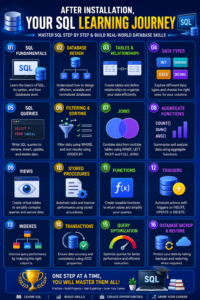
Career Opportunities after Learning SQL Server
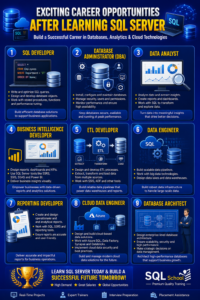
SQL Server skills can help you pursue roles such as:
Why Learn SQL Server from SQL School?
SQL School provides industry-oriented SQL Server training designed for both beginners and working professionals.
Key benefits include:
- Beginner-friendly curriculum
- Live instructor-led sessions
- Real-time project experience
- Hands-on practical exercises
- Interview preparation
- Resume guidance
- Industry use cases
- Placement assistance
- Continuous mentor support
Conclusion
Installing Microsoft SQL Server and SQL Server Management Studio is the foundation of every successful database career. Once your environment is ready, you can start learning SQL, build practical projects, and gain the skills required for careers in database administration, data analytics, business intelligence, and data engineering.
Whether you’re a student, software developer, or IT professional, mastering SQL Server opens the door to countless career opportunities in today’s data-driven world. With the right guidance and consistent practice, you’ll be well on your way to becoming a confident SQL professional.
Why Choose SQL School for SQL Server Training?
SQL School is one of the trusted training institutes for aspiring database professionals, offering industry-focused SQL Server training designed to help students build practical skills and advance their careers.
Why Students Choose SQL School
- 🎯 Industry-Oriented Curriculum aligned with current job market requirements.
- 👨🏫 Experienced Trainers with extensive real-world SQL Server expertise.
- 💻 Hands-On Practical Sessions with live server access and real-time exercises.
- 📂 Real-Time Projects to gain practical experience in database development and administration.
- ⚡ Performance Tuning & Advanced T-SQL training for professional-level skills.
- 📊 Interview Preparation with mock interviews and frequently asked SQL interview questions.
- 📄 Resume Building & Career Guidance to improve job opportunities.
- 🏆 Certification Guidance to help learners prepare for Microsoft SQL certifications.
- 🤝 Placement Assistance and continuous career support for eligible learners.
- 📚 Flexible Learning Options with instructor-led online and classroom training.
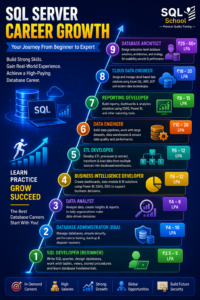
Conclusion
SQL Server continues to be one of the most in-demand database technologies used by organizations worldwide. Learning SQL Server provides a strong foundation for careers in database development, administration, business intelligence, data analytics, and cloud technologies.
At SQL School, you’ll gain hands-on experience through practical training, real-time projects, expert mentorship, and career-focused guidance. Whether you’re a student, working professional, or career changer, SQL School equips you with the technical knowledge and practical skills needed to succeed in today’s competitive IT industry and confidently pursue high-demand database roles.
#SQLServer #MicrosoftSQLServer #SQLDeveloper #SQLTraining #SQLCourse #LearnSQL #SQLServer2026 #SSMS #Database #DatabaseDeveloper #DatabaseAdministrator #DBA #DataAnalyst #BusinessIntelligence #PowerBI #ETLDeveloper #DataEngineer #CloudDataEngineer #DatabaseArchitect #TSQL #SQLQueries #QueryOptimization #DataManagement #TechCareers #ITCareer #CareerGrowth #DatabaseTraining #SQLSchool #SQLSchoolTrainingInstitute #MicrosoftDataPlatform
Full Course details:- https://sqlschool.com/sql-server-training/
Download installation links:-
Step 1: Install SQL Server 2025
https://drive.google.com/drive/folders/19BRbkSYjcDrB_dXUDoomm6QuAsscstkQ
Step 2: Install SSMS Tool (SQL Server Management Studio)
Trainer: Mr. Sai Phanindra
With 20+ Years

Follow us daily for more updates!
WhatsApp Channel: https://whatsapp.com/channel/0029VamSJLI35fLmVEvCPD3r
WhatsApp Job Updates : https://whatsapp.com/channel/0029Vb2LI8zG3R3dWqv5jS1T
Instagram : https://www.instagram.com/sqlschool__training
YouTube : www.youtube.com/sequelschool
Trainer Profile : www.linkedin.com/in/saiphanindra
Website : www.sqlschool.com
Reach Us: +919951440801 | +919666440801
