
How to Implement Data Cleansing in Azure Data Factory Mapping Data Flows: Step-by-Step Guide
Introduction: Why Data Cleansing Matters in Cloud Data Engineering
In modern data engineering, collecting data is only the first step. Before data can be used for business intelligence, reporting, or machine learning, it must be accurate, consistent, and reliable.
Organizations often receive data from multiple sources, including SQL Server databases, Excel files, CSV files, APIs, and cloud storage. This data may contain duplicate records, missing values, inconsistent formats, invalid email addresses, and incorrect data types.
Azure Data Factory Mapping Data Flows provides a visual, low-code approach to transforming and cleansing data as part of cloud-based data integration pipelines.
In this tutorial, you will learn how to implement data cleansing in Azure Data Factory using a practical customer-data scenario, including handling null values, removing duplicates, standardizing text, validating records, and loading clean data into a destination.
Whether you are an aspiring Azure Data Engineer, Data Engineer, or Data Analyst, this guide will help you understand how data quality rules work in a real-world ETL process.
What Is Data Cleansing in Azure Data Factory?
Data cleansing is the process of identifying and correcting inaccurate, incomplete, duplicate, or inconsistent data before it is stored or analyzed.
Azure Data Factory (ADF) is a cloud-based data integration service used to orchestrate data movement and transformation workflows.
Mapping Data Flows allow developers to design transformations visually. These flows execute on managed Apache Spark clusters and can be incorporated into Azure Data Factory pipelines.
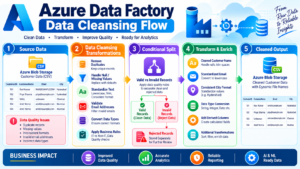
Common data cleansing operations include:
- Removing duplicate records.
- Replacing or handling null values.
- Standardizing names, email addresses, and text formats.
- Converting columns to appropriate data types.
- Filtering invalid records.
- Validating business rules.
- Separating rejected records for further investigation.
Prerequisites Before Implementing Data Cleansing
Before you begin, ensure you have the following:
- An active Azure subscription.
- An Azure Data Factory instance.
- Access to a supported source, such as Azure Blob Storage, Azure Data Lake Storage Gen2, or Azure SQL Database.
- A sample CSV or database table containing customer records.
- A destination dataset for storing cleansed data.
For this tutorial, we will use a customer CSV file as the source and a cleaned output file as the destination.
Understanding the Real-Time Customer Data Problem
Imagine an e-commerce company collecting customer information from website registrations, mobile applications, and marketing campaigns.
The source file contains the following records:
| CustomerID | CustomerName | City | |
|---|---|---|---|
| 101 | Ravi Kumar | RAVI@EXAMPLE.COM | Hyderabad |
| 102 | Priya Sharma | priya@example.com | hyderabad |
| 103 | NULL | unknown | Chennai |
| 104 | Amit Verma | amit@example.com | Mumbai |
| 104 | Amit Verma | amit@example.com | Mumbai |
This dataset contains several data quality problems:
- Customer 101 has an email address written in uppercase.
- Customer 102 has inconsistent city capitalization.
- Customer 103 has a missing customer name and an invalid placeholder email.
- Customer 104 appears twice.
If this data is loaded directly into a reporting system, it may cause inaccurate customer counts, inconsistent reports, and unreliable analytics.
Our goal is to build an Azure Data Factory Mapping Data Flow that applies cleansing rules before writing the output.
Step 1: Create a Source Dataset in Azure Data Factory
First, open the Azure portal and navigate to your Azure Data Factory instance.
- Open the Author section.
- Select New resource and create a dataset.
- Choose the appropriate connector, such as Azure Blob Storage.
- Select the linked service for your storage account.
- Browse to the customer CSV file.
- Configure the file format and delimiter.
- Import or define the source schema.
Verify that columns such as CustomerID, CustomerName, Email, and City are detected correctly.
If your source contains CSV data, confirm that the first row is treated as the header when appropriate.
Step 2: Create a Mapping Data Flow
After configuring the source dataset:
- Open the Author interface.
- Select Data flows and create a new Mapping Data Flow.
- Add a Source transformation.
- Select the customer dataset created in Step 1.
- Import the source projection and review the column data types.
The source transformation makes the incoming customer records available for subsequent cleansing operations.
You can preview the source data while developing the flow by enabling data flow debug and using Data Preview.
Step 3: Handle Null and Missing Values
Missing values can cause problems in customer analytics, reporting, and downstream processing.
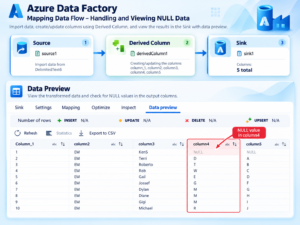
Add a Derived Column transformation to create cleaned columns or update existing columns.
For example, use expressions similar to these:
CustomerName_Clean =
iif(isNull(CustomerName), 'Unknown', trim(CustomerName))

Email_Clean =
lower(trim(Email))
These expressions demonstrate two common operations:
- Replace a null customer name with a default value.
- Remove leading and trailing whitespace from an email address and convert it to lowercase.
Important: The example expression for CustomerName handles nulls but does not automatically treat empty strings as null. Add an explicit empty-string condition if your source contains blank values.
Also, replacing a missing name with “Unknown” is a business decision. For strict data quality requirements, you may prefer to send records with missing mandatory fields to a reject output rather than retain them.
Step 4: Standardize Text and Data Formats
Inconsistent text values can create duplicate categories in reports. For example, Hyderabad, hyderabad, and HYDERABAD may appear as separate values in some reporting scenarios.
Add another Derived Column transformation or extend the existing one.
Example expressions:
Email_Clean = lower(trim(Email))

City_Clean = upper(trim(City))

CustomerName_Clean = trim(CustomerName)
These transformations standardize email addresses, city values, and customer names.
The use of uppercase or lowercase is a design choice. Choose a consistent convention that matches your organization’s data standards.
For date columns, use an appropriate conversion expression and ensure that the incoming date format is known. Do not assume every source uses the same date format.
Step 5: Remove Duplicate Customer Records
Duplicate records can inflate customer counts and affect revenue reports.
Azure Data Factory Mapping Data Flows supports an Aggregate transformation that can be used to group records by a business key.
For example, if CustomerID uniquely identifies a customer, group records by CustomerID and select suitable values for the remaining columns.
However, simply grouping by CustomerID is not always sufficient. If the duplicate records contain conflicting names or email addresses, you need a rule to determine which record should be retained.
Possible rules include:
- Keep the record with the most recent update timestamp.
- Prefer records with a verified email address.
- Keep the record from the trusted source system.
- Quarantine conflicting records for review.
When selecting a latest record, a Window transformation with a ranking expression can help order records by CustomerID and an update timestamp. Filter to the top-ranked record after defining a deterministic sort order.
Choose the deduplication method according to your business requirements rather than removing records based on appearance alone.
Step 6: Validate Email Addresses and Mandatory Fields
A customer record may contain an email value that is missing or invalid.
Add a Conditional Split transformation to separate valid records from rejected records.
Example validation logic can check that:
- CustomerID is present.
- CustomerName is not null or blank.
- Email is not null or blank.
- Email does not contain a known placeholder such as “unknown”.
For example, a simple mandatory-field condition may use logic similar to:
!isNull(CustomerID)
&& !isNull(CustomerName)
&& trim(CustomerName) != ''
&& !isNull(Email)
&& lower(trim(Email)) != 'unknown'
&& trim(Email) != ''
This condition checks for basic completeness, not full email validity. If your requirements demand stricter email validation, apply an appropriate pattern-based validation rule or validate through a trusted upstream process.
Configure the Conditional Split with separate streams for valid and rejected records. This makes it possible to load clean data while preserving rejected records for troubleshooting.
Step 7: Configure the Sink to Store Cleansed Data
Once the transformations are complete, add a Sink transformation to the valid-record stream.
Configure the sink to write the cleansed data to a destination such as:
- Azure Data Lake Storage Gen2.
- Azure Blob Storage.
- Azure SQL Database.
- Another supported destination.
Choose the output format, file path or table, and appropriate write settings.
For a file-based example, the output could be written to a dedicated cleansed/customers/ folder. Rejected records can be written to a separate rejected/customers/ folder.
Review the sink mapping and verify that the destination schema matches the transformed output.
Step 8: Validate the Output Using Data Preview
Before running the flow in production, inspect the results.
Check that:
- Email addresses use a consistent case.
- City names follow the chosen standard.
- Mandatory fields are populated in the valid output.
- Duplicate customer records are handled according to the chosen rule.
- Rejected records are separated correctly.
- Column names and data types match the destination schema.
Use representative test records containing null values, empty strings, duplicates, invalid placeholders, and conflicting updates.
Data Preview is useful during development, but you should also validate the results of a complete pipeline execution.
Step 9: Add the Data Flow to an Azure Data Factory Pipeline
A Mapping Data Flow can be executed as part of a pipeline.
- Create a new pipeline in Azure Data Factory.
- Add a Data Flow activity.
- Select the Mapping Data Flow you created.
- Configure any required parameters.
- Configure the integration runtime and compute settings where applicable.
- Validate and publish the pipeline.
- Run the pipeline using Debug or a suitable trigger.
For production workloads, configure scheduling or event-based execution according to the business requirement.
Review pipeline run details and Data Flow monitoring information to identify failed activities, data quality issues, and execution bottlenecks.
Step 10: Monitor and Improve Data Quality
Data cleansing should be part of an ongoing data quality process rather than a one-time activity.
Consider implementing these practices:
- Track the number of source, accepted, and rejected records.
- Record rejection reasons wherever practical.
- Monitor duplicate rates and missing-value percentages.
- Alert the team when rejected records exceed an agreed threshold.
- Review changes to source schemas.
- Test transformation logic when business rules change.
- Secure access to source data, output data, and credentials.
These practices help data engineers build reliable and maintainable ETL pipelines.
Expected Results After Data Cleansing
After applying the appropriate cleansing rules to the sample dataset, the expected outcome is:
- Email addresses are trimmed and standardized.
- City names follow a consistent format.
- Missing mandatory values are identified.
- Duplicate CustomerID records are resolved using an explicit business rule.
- Valid records are written to the cleansed destination.
- Rejected records are available for further investigation.
The final number of output records depends on the deduplication strategy and whether incomplete records are corrected, retained, or rejected.
Best Practices for Azure Data Factory Data Cleansing
To build effective data cleansing workflows, follow these recommendations:
- Understand the source data: Identify data types, null patterns, duplicates, and inconsistent formats before designing transformations.
- Define business rules: Document which fields are mandatory and how conflicting records should be handled.
- Keep rejected records: Avoid silently discarding records that fail validation.
- Make transformations reusable: Use parameters and consistent naming conventions when building repeatable flows.
- Optimize execution: Test partitioning, transformation order, and compute settings with realistic data volumes.
- Protect sensitive data: Follow least-privilege access, secure credential handling, and applicable data governance policies.
- Monitor pipeline runs: Use run history and operational alerts to detect failures early.
Frequently Asked Questions (FAQs)
1. What is data cleansing in Azure Data Factory?
Data cleansing in Azure Data Factory involves transforming source data to improve its completeness, consistency, validity, and usability before loading it into a destination.
2. Which transformation is used to replace null values in Mapping Data Flows?
The Derived Column transformation can create or update columns using expressions that handle null values. The appropriate expression depends on the column type and business requirements.
3. How can I remove duplicate records in Azure Data Factory?
You can use an Aggregate transformation to group records by a business key or a Window transformation to rank records and retain the preferred row. The correct approach depends on how duplicates should be resolved.
4. Can Azure Data Factory separate invalid records?
Yes. A Conditional Split transformation can route records into different streams based on validation rules, allowing valid and rejected records to be stored separately.
5. Can Mapping Data Flows run automatically?
Yes. Mapping Data Flows can run through Data Flow activities in Azure Data Factory pipelines. Pipelines can be configured with supported schedules or event-based triggers.
6. Is coding required for Azure Data Factory Mapping Data Flows?
Mapping Data Flows provide a visual, low-code development experience. Expressions are still useful for implementing transformation rules and handling complex data quality scenarios.
Conclusion: Build Reliable Data Pipelines with Azure Data Factory
Data cleansing is a critical step in building reliable cloud data engineering solutions. By using Azure Data Factory Mapping Data Flows, data engineers can create visual workflows to handle missing values, standardize text, validate business rules, resolve duplicates, and prepare high-quality data for analytics.
The customer-data example in this tutorial demonstrates how these transformations can be combined into a repeatable ETL pipeline. By adding validation, rejected-record handling, monitoring, and business-specific deduplication rules, you can build a more dependable data integration process.
To strengthen your Azure Data Engineering skills, practise with real-world datasets, develop end-to-end ETL pipelines, and learn how Azure Data Factory integrates with Azure Data Lake Storage, Azure SQL Database, Databricks, and Microsoft Fabric.
Ready to Become a Job-Ready Azure Data Engineer?
Master Azure Data Factory, data cleansing, and real-time projects with hands-on training at SQL School.
🌐 https://sqlschool.com/
📞 +91 9666440801 | +91 9951440801
Enroll Today and Advance Your Data Engineering Career!
#AzureDataFactory #AzureDataEngineering #DataCleansing #MappingDataFlows #AzureETL #CloudDataEngineering #DataTransformation #AzureTutorial #ETLPipeline #SQLSchool