
SQL Server 2025 Installation Guide: Set Up Your Database Environment from Scratch
Introduction: Your First Step into SQL Server
Microsoft SQL Server is a powerful relational database management system used by organizations to store, manage, process, and analyze business data. It plays an important role in application development, database administration, business intelligence, and data engineering.
For beginners entering the database field, installing SQL Server and understanding how to work with SQL Server Management Studio (SSMS) are essential first steps.
In this guide, you will learn how to download and install SQL Server 2025, configure the Database Engine, install SSMS, connect to your local server, and execute your first SQL query.
Whether you are an aspiring SQL Developer, Database Administrator, Data Analyst, or Data Engineer, this tutorial will help you build your SQL practice environment.
Understanding the SQL Server and SSMS Ecosystem
Before starting the installation, it is important to understand the purpose of the two main components.
SQL Server 2025: The database engine responsible for storing data, processing queries, managing transactions, and controlling database security.
SQL Server Management Studio (SSMS): A graphical management tool used to connect to SQL Server, create databases, write SQL queries, and manage database objects.
These components are installed separately. Installing SSMS alone does not install the SQL Server Database Engine.
Step 1: Prepare Your System for Installation
Before downloading the software, ensure your computer meets the requirements for the selected SQL Server edition.
- A supported 64-bit Windows operating system.
- Sufficient RAM and free disk space for the database engine and management tools.
- Administrator permissions for installation.
- An internet connection to download the installation packages.
For a beginner’s practice environment, 8 GB of RAM is a reasonable starting point, although your actual requirements depend on the SQL Server edition and workload.
Review the official Microsoft system requirements before proceeding.
Step 2: Obtain the SQL Server 2025 Installer
Download SQL Server from the official Microsoft website:
Choose an edition appropriate for your learning or development requirements. The Developer edition is intended for development and testing, not production use.
After downloading the installer, launch it and follow the available setup options to begin the installation process.
Step 3: Install the Database Engine and Select Features
<AsyncImage query=”SQL Server installation center Windows database engine services setup wizard feature selection screen” aspectRatio=”16:9″ width=”100%”/>
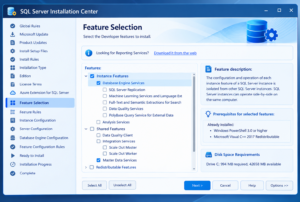
Open the SQL Server Installation Center and select the option to start a new stand-alone SQL Server installation.
Follow the setup wizard and review the installation rules and prerequisites. Resolve any blocking issues before continuing.
On the Feature Selection screen, select Database Engine Services to install the core database engine. Additional features can be selected if your projects require them.
Accept the licence terms when prompted and continue with the installation.
Step 4: Configure Your SQL Server Instance
An SQL Server instance represents an installation of the database engine running on your computer.
During setup, you can select the default instance or create a named instance.
For example, you might use the instance name SQL2025DEV.
Remember the instance name because you will need it when connecting through SSMS. The server name for a named instance typically follows this format:
COMPUTER_NAME\SQL2025DEV
Replace COMPUTER_NAME with your actual Windows computer name.
Step 5: Set Authentication and Administrator Access
SQL Server supports different authentication configurations.
Windows Authentication uses your Windows credentials to connect to the database engine.
Mixed Mode Authentication supports both Windows Authentication and SQL Server Authentication.
Choose the mode appropriate for your environment. If you enable Mixed Mode, configure a strong password and add an authorized administrator account.
Review the configuration carefully before completing the setup.
Step 6: Install SQL Server Management Studio
<AsyncImage query=”SQL Server Management Studio SSMS query editor Object Explorer Windows application screenshot” aspectRatio=”16:9″ width=”100%”/>
After the Database Engine installation is complete, download SSMS from Microsoft’s official documentation page:
Run the installer and follow the installation prompts. The current SSMS installation process uses Visual Studio Installer.
Once installation is complete, open SSMS to begin managing your SQL Server instance.
Step 7: Connect to Your Local Database Server
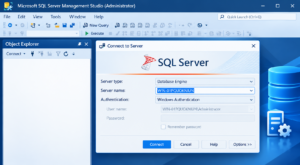
Launch SSMS and enter the connection details.
- Select Database Engine as the server type.
- Enter the server or instance name.
- Select the authentication method configured during installation.
- Click Connect.
For a named instance, enter a server name such as COMPUTER_NAME\SQL2025DEV. For a default instance, the computer name or localhost may be appropriate, depending on your configuration.
After a successful connection, Object Explorer displays the server and its database objects.
Step 8: Execute Your First SQL Query
Once connected, open a new query window and execute the following command to check your SQL Server version.
SELECT @@VERSION AS SQLServerVersion;You can also create a small database and practise basic SQL operations.
CREATE DATABASE SQLSchoolPracticeDB;
GO

USE SQLSchoolPracticeDB;
GO

CREATE TABLE Students
(
    StudentID INT PRIMARY KEY,
    StudentName VARCHAR(100),
    CourseName VARCHAR(100)
);
GO

INSERT INTO Students
    (StudentID, StudentName, CourseName)
VALUES
    (1, 'Rahul', 'SQL Developer'),
    (2, 'Priya', 'Data Analyst');
GO

SELECT * FROM Students;
The final query returns the two inserted student records.
This exercise introduces four fundamental SQL operations: creating a database, creating a table, inserting records, and retrieving data.
Step 9: Validate the Installation and Troubleshoot Issues
After completing the setup, verify that your database environment is working correctly.
- Confirm that SSMS connects to the intended SQL Server instance.
- Execute
SELECT @@VERSION;to identify the server version. - Create a sample database and retrieve data successfully.
- Check that the SQL Server service is running if the connection fails.
If you encounter a connection error, verify the instance name and authentication settings. If installation fails, review the setup logs and check whether the system meets the requirements.
For additional help, consult the official Microsoft SSMS installation documentation.
Practical Applications of SQL Server Skills
Learning SQL Server opens the door to several technical career paths.
SQL Developer: Develops queries, views, stored procedures, functions, and database solutions.
SQL Server DBA: Handles database security, backup and recovery, performance monitoring, and administration.
Data Analyst: Extracts and analyzes business data to support reporting and decision-making.
Data Engineer: Works with databases, data integration, and data pipelines to prepare data for analytics.
Beyond installing the software, practise joins, subqueries, common table expressions, window functions, transactions, indexing, and query optimization to develop stronger database skills.
Frequently Asked Questions (FAQs) – SQL Server 2025 Installation
1. What is SQL Server 2025?
SQL Server 2025 is Microsoft’s relational database management system used to store, manage, retrieve, and process data for applications and business solutions.
2. What is the difference between SQL Server and SSMS?
SQL Server is the database engine that stores and processes data, whereas SSMS is the graphical tool used to connect to and manage SQL Server.
3. Is SQL Server Management Studio included with SQL Server 2025?
No. SQL Server and SSMS are installed separately. You must download and install SSMS independently.
4. Which SQL Server edition is suitable for beginners?
The Developer edition is suitable for learning, development, and testing. It is not licensed for production workloads.
5. Can I install SQL Server 2025 on my personal computer?
Yes, provided your computer meets the operating system, hardware, and other requirements for the selected edition.
Conclusion: Build Your SQL Skills Through Practice
Installing SQL Server 2025 and SQL Server Management Studio is the foundation for learning database development and administration. By following these steps, you can create a local SQL environment, connect to the Database Engine, and begin writing queries.
The next step is consistent practice with real-world datasets, assignments, and business scenarios. These activities help you move beyond basic SQL syntax and develop the problem-solving skills needed for professional database roles.
Start Learning SQL with SQL School Training Institute
SQL School Training Institute, Hyderabad, provides practical training in SQL, SQL DBA, Azure Data Engineering, Power BI, Microsoft Fabric, and other data technologies.
Training includes hands-on exercises, scenario-based projects, interview preparation, resume guidance, and placement assistance.
Contact SQL School:
- Phone: +91 9666440801
- Phone: +91 9951440801
- Website: https://sqlschool.com/
- Trainer: Sai Phanindra, Founder & Trainer
- LinkedIn: https://www.linkedin.com/in/saiphanindra/
Take the next step towards building your career in SQL Development, Database Administration, or Data Engineering.
#SQLServer2025 #SQLServer #SSMS #LearnSQL #SQLTutorial #SQLDeveloper #SQLDBA #DatabaseAdministration #SQLTraining #SQLSchool