
How to Connect SQL Server from Mac: Complete Step-by-Step Guide
Working with SQL Server on a Mac can initially seem difficult because SQL Server Management Studio (SSMS) is primarily designed for Windows. However, Mac users can still connect to and work with Microsoft SQL Server using alternatives such as Azure Data Studio, Visual Studio Code, sqlcmd, Docker, and other SQL clients.
Whether you are a beginner learning SQL, a SQL Developer, Data Analyst, or database professional, understanding how to connect SQL Server from Mac is an important practical skill.
In this guide, we will explain how to connect to SQL Server from a Mac, what tools are required, how to configure the connection, and how to troubleshoot common connection problems.
Why Connect to SQL Server from a Mac?
SQL Server is widely used in enterprise applications, data analytics, reporting, ETL, and database administration.
Mac users may need to connect to SQL Server for:
- SQL development
- Data analysis
- Database administration
- Power BI and reporting workflows
- ETL development
- Application development
- Learning SQL Server
- Working with remote SQL Server databases
- Testing SQL queries and stored procedures
The important point is that SQL Server itself and the tool used to connect to SQL Server are separate components.
You can run SQL Server in a supported environment and use a Mac-compatible client to connect to it.
Can You Install SQL Server Directly on a Mac?
Microsoft SQL Server does not provide the same native installation experience on macOS that it provides on Windows.
For Mac users, a common approach is to run SQL Server using Docker and then connect to it from a Mac-compatible SQL client.
Another common scenario is connecting your Mac to an existing SQL Server instance running on:
- Windows Server
- Azure
- A company server
- A virtual machine
- A cloud environment
- Docker
- Another computer on the network
What Do You Need to Connect SQL Server from Mac?
Before connecting, you need the following information:
1. SQL Server Host Name
This identifies the machine where SQL Server is running.
Examples:
localhost
192.168.1.100
server.company.com
2. SQL Server Port
The default SQL Server TCP port is generally:
1433
3. Authentication Details
You may need:
Username
Password
For SQL Server Authentication, a login such as sa may be used if it has been configured and is permitted.
4. Database Name
You can optionally specify the database you want to connect to.
Example:
SalesDB5. SQL Client
You need a Mac-compatible tool to execute SQL queries.
Common options include:
- Azure Data Studio
- Visual Studio Code with SQL extensions
- sqlcmd
- DBeaver
- Other database management tools
Method 1: Connect to SQL Server Using Azure Data Studio
One approach for Mac users is using a cross-platform database tool such as Azure Data Studio.
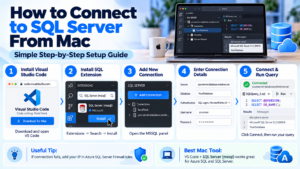
The basic connection workflow is:
Open SQL Client
       ↓
Create New Connection
       ↓
Enter Server Name
       ↓
Enter Authentication Details
       ↓
Enter Database
       ↓
Test Connection
       ↓
Connect
Step 1: Open Your SQL Client
Launch your SQL database client on your Mac.
Look for an option such as:
New Connection
or
Connect to Server
The exact interface can vary depending on the client and version.
Step 2: Enter the SQL Server Name
Enter the server where SQL Server is running.
For a local SQL Server environment, you may use:
localhostIf SQL Server is running on another machine, enter its server name or IP address.
For example:
192.168.1.100If a non-default port is configured, specify that port as well.
Example:
192.168.1.100,1433Step 3: Select Authentication
SQL Server supports different authentication configurations.
For SQL Server Authentication, provide:
User name: sa
Password: ********
Do not use sa unless the account has been configured for your environment.
For enterprise environments, your organization may use Windows/Entra or another authentication mechanism depending on the SQL Server deployment and client support.
Step 4: Specify the Database
You can connect to a particular database if required.
For example:
Database: SalesDBIf you don’t specify a database, you can generally connect to the server and select a database after connecting, depending on the client.
Step 5: Test the Connection
Before running queries, verify that the connection succeeds.
A successful connection means your Mac can communicate with the SQL Server instance and authenticate successfully.
Step 6: Run Your First SQL Query
Once connected, open a new query window and execute:
SELECT @@VERSION;This displays information about the SQL Server instance.
You can also execute:
SELECT DB_NAME() AS CurrentDatabase;This shows the database currently selected for the connection.
Method 2: Run SQL Server on Mac Using Docker
If you don’t already have access to a SQL Server instance, Docker provides a practical development option.
The architecture looks like this:
Mac
 │
 ├── Docker Desktop
 │       │
 │       └── SQL Server Container
 │                  │
 │                  └── SQL Server Database Engine
 │
 └── SQL Client
         │
         └── Connects to SQL Server
This allows SQL Server to run inside a container while your Mac-based database client connects to it.
SQL Server Docker Connection Concept
A typical local connection may use:
Server: localhost
Port: 1433
The Docker container must publish the SQL Server port to the Mac.
Conceptually:
Mac Port 1433
      ↓
Docker Port 1433
      ↓
SQL Server Container
Connecting to SQL Server Running in Docker
After starting your SQL Server container, your SQL client can typically use:
Server: localhost
Port: 1433
Then provide the credentials configured for the SQL Server container.
After connecting, test it with:
SELECT @@SERVERNAME AS ServerName,
       DB_NAME() AS DatabaseName;
If the query executes successfully, your Mac is connected to SQL Server.
Method 3: Connect Using sqlcmd
Another option is sqlcmd, a command-line utility for interacting with SQL Server.
A typical connection concept is:
sqlcmd -S localhost,1433 -U sa -P "YourPassword"After successfully connecting, you can execute SQL statements from the command line.
For example:
SELECT @@VERSION;
GO
This approach is especially useful for developers, database administrators, automation, scripting, and testing.
Method 4: Connect SQL Server from Visual Studio Code
Mac users can also work with SQL Server through Visual Studio Code using an appropriate SQL Server extension.
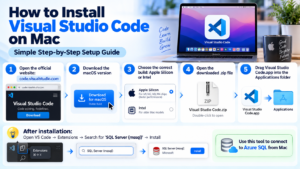
The general process is:
Install Visual Studio Code
        ↓
Install SQL Server Extension
        ↓
Create Connection
        ↓
Enter Server Details
        ↓
Authenticate
        ↓
Open Query
        ↓
Execute SQL
This is useful for developers who already use VS Code for programming and want SQL development in the same environment.
Important SQL Server Connection Parameters
When connecting SQL Server from Mac, understand these common parameters:
| Parameter | Example |
|---|---|
| Server | localhost |
| Port | 1433 |
| Database | SalesDB |
| Authentication | SQL Server Authentication |
| Username | sa |
| Password | Your configured password |
The actual values depend on where your SQL Server is running.
Common SQL Server Connection Errors on Mac
Connection problems are common when setting up SQL Server on a Mac. Here are some issues to check.
Server Not Found
If you receive a server-not-found error, verify:
- SQL Server is running
- Host name is correct
- IP address is correct
- Docker container is running, if applicable
- Network connectivity is available
Connection Refused
A connection-refused error may indicate that the SQL Server port is not reachable.
Check:
Server
Port
Firewall
Docker port mapping
SQL Server network configuration
Login Failed for User
If authentication fails, verify:
- Username
- Password
- Authentication method
- SQL Server login status
- Server authentication configuration
Cannot Open Database
If the login succeeds but the database cannot be opened, check whether:
- The database exists
- The user has access
- The database name is correct
- The database is online
SQL Server Port 1433 Explained
SQL Server commonly uses TCP port:
1433For example:
localhost,1433However, you should not assume every SQL Server environment uses port 1433. Your administrator or deployment configuration may use a different port.
For Docker-based setups, make sure the host port is mapped correctly.
How to Verify SQL Server Connectivity
After establishing the connection, run a few basic queries.
Check SQL Server Version
SELECT @@VERSION;Check Server Name
SELECT @@SERVERNAME;Check Current Database
SELECT DB_NAME();List Databases
SELECT name
FROM sys.databases;
These queries help confirm that your connection is working correctly.
Frequently Asked Questions
Can I connect SQL Server from a Mac?
Yes. You can connect from macOS to SQL Server using compatible database clients, command-line tools, Docker-based SQL Server environments, or remote SQL Server instances.
Can I install SQL Server directly on macOS?
SQL Server does not have the same native macOS installation experience as Windows. Mac users commonly use Docker, a virtualized environment, or connect to a remote SQL Server.
Can I use SQL Server Management Studio on Mac?
SSMS is a Windows application. Mac users can instead use cross-platform tools such as Visual Studio Code with appropriate SQL extensions, sqlcmd, or other SQL Server-compatible database clients.
What port does SQL Server use?
TCP port 1433 is the standard/default SQL Server port, although an environment may use another port.
Final Thoughts
Connecting SQL Server from Mac is completely practical once you understand the difference between the SQL Server database engine and the client application used to access it.
Whether you use Docker, a cross-platform SQL client, Visual Studio Code, sqlcmd, Azure, or a remote SQL Server, the core SQL development experience remains familiar.
For beginners, the most important steps are:
Set up SQL Server → Identify the server and port → Configure authentication → Connect using a SQL client → Run test queries → Start practicing SQL.
Learn Practical SQL Server with SQL School
Build practical SQL and SQL Server skills through hands-on training, real-time scenarios, assignments, interview preparation, and projects with SQL School Training Institute – Hyderabad.
Trainer: Mr. Sai Phanindra – Founder & Trainer
Experience: 20+ Years Expertise
Training: 100% Practical & Step-by-Step Learning
Projects: Real-Time & Scenario-Based Projects
Call / WhatsApp: +91 9666440801 / +91 9951440801
Website: SQL School Training Institute
#SQLServer #SQLServerOnMac #SQLServerMac #MacBook #SQL #TSQL #Database #DatabaseManagement #SQLDeveloper #SQLDBA #SQLDevelopment #Docker #DockerSQLServer #SQLQueries #DatabaseDeveloper #DataAnalytics #DataAnalyst #DataEngineering #SQLTraining