
Default vs. Named Instance in SQL Server: Differences, Configuration, and Connection Guide
Introduction: Why SQL Server Instance Types Matter
Microsoft SQL Server is widely used for managing business data, developing database applications, and supporting enterprise data platforms. During SQL Server installation, one important decision is whether to configure a Default Instance or a Named Instance.
Understanding the difference between a Default Instance and a Named Instance in SQL Server helps developers and database administrators configure database environments, connect applications correctly, and troubleshoot connectivity issues.
Although both instance types provide SQL Server Database Engine functionality, they differ in naming conventions, connection methods, service management, and network configuration.
In this guide, you will explore SQL Server instance types with practical examples, SSMS connection steps, T-SQL commands, and real-world use cases.
1. SQL Server Instance Fundamentals: Understanding the Database Engine
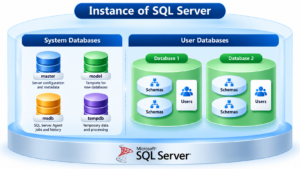
A SQL Server instance is an installation of the SQL Server Database Engine that manages databases, logins, security settings, server-level configurations, and other database resources.
A single computer can host multiple SQL Server instances. This allows organizations and developers to maintain separate database environments on the same machine.
For example, a computer might contain:
- A default instance for general database operations.
- A named instance for application development.
- Another named instance for testing or compatibility checks.
Each instance has its own instance-level configuration and service. However, instances on the same computer share hardware resources such as CPU, memory, and storage.
2. Default Instance Explained: The Standard SQL Server Installation
A Default Instance is a SQL Server Database Engine instance that clients can identify without specifying an instance name in the connection string.
During installation, the default instance uses the internal instance name MSSQLSERVER. However, users generally connect by entering the computer name or another valid server address.
Default Instance Connection Examples
Assume SQL Server is installed on a computer named SQLSERVER01.
Common connection names include:
SQLSERVER01localhost.127.0.0.1
The last three examples refer to the local computer when used in the appropriate local connection context.
Where a Default Instance Fits Best
A default instance is suitable when an organization needs a primary SQL Server installation and wants to keep connection strings straightforward.
Typical use cases include:
- Hosting an application’s primary database.
- Learning SQL Server fundamentals.
- Running a database server for a small or medium-sized application.
- Supporting applications configured to connect using the computer name.
3. Named Instance Explained: Running Separate SQL Server Environments
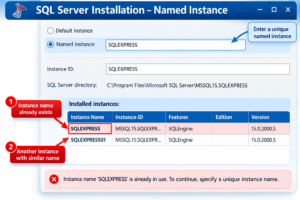
A Named Instance is a SQL Server Database Engine instance assigned a specific name during installation.
Instead of connecting only through the computer name, clients typically specify both the computer name and the instance name.
The connection format is:
ComputerName\InstanceName
For example:
SQLSERVER01\DEVSQL
Here, SQLSERVER01 is the computer name, and DEVSQL is the SQL Server instance name.
For a local installation, you can also use:
localhost\DEVSQL
or
.\DEVSQL
Practical Examples of Named Instances
A database administrator might configure the following instances:
SQLSERVER01\DEVSQL— Development databases.SQLSERVER01\TESTSQL— Testing databases.SQLSERVER01\SQL2025— A separate SQL Server installation.
These names are examples only; the corresponding instances must be installed and configured.
Why Database Administrators Choose Named Instances
Named instances are helpful when multiple SQL Server Database Engine installations are required on one computer.
They can support separate application environments, independent instance-level settings, and different supported SQL Server versions.
4. Default vs. Named Instance: A Side-by-Side Technical Comparison
The following comparison highlights the main differences between the two SQL Server instance types.
| Feature | Default Instance | Named Instance |
|---|---|---|
| Instance identification | Internally named MSSQLSERVER | Uses a specified instance name |
| Connection format | SQLSERVER01 | SQLSERVER01\DEVSQL |
| Instance name in connection | Usually omitted | Usually included |
| Default instances per computer | One | Not applicable |
| Multiple instances on one computer | Can coexist with named instances | Multiple named instances can coexist |
| Instance-level configuration | Independent | Independent |
| Typical purpose | Primary SQL Server installation | Separate applications or environments |
| Network port | Commonly TCP 1433, but configurable | Dynamic or static port |
| SQL Server Browser | Usually unnecessary for a direct connection to a known default port | May be required for instance-name and dynamic-port discovery |
Important: A named instance does not require a default instance to be installed first. You can install a named instance on a computer without a default instance.
5. Connecting to a Default Instance Through SQL Server Management Studio
SQL Server Management Studio (SSMS) provides a graphical interface for connecting to SQL Server, executing queries, and managing database objects.
Follow these steps to connect to a default instance.
Step 1: Launch SSMS
Open SQL Server Management Studio from the Windows Start menu.
Step 2: Choose the Database Engine
In the Connect to Server window, set Server type to Database Engine.
Step 3: Enter the Server Address
Enter the computer name or an appropriate local connection name, such as:
SQLSERVER01
Step 4: Select Authentication
Choose Windows Authentication or SQL Server Authentication, depending on the configuration of your SQL Server installation.
Step 5: Establish the Connection
Click Connect. After a successful connection, expand the Databases folder to view the databases available to your login.
6. Connecting to a Named Instance: Server Name and Authentication Settings
Connecting to a named instance follows the same process, but the server name must identify the target instance.
Step 1: Open the SSMS Connection Window
Launch SSMS and select Database Engine.
Step 2: Specify the Complete Instance Name
For example:
SQLSERVER01\DEVSQL
For a local instance:
.\DEVSQL
Step 3: Configure Authentication
Choose the authentication method enabled on the SQL Server instance and provide the required credentials.
Step 4: Connect and Verify
Click Connect and confirm that you have reached the intended instance.
If the connection fails, verify the instance name, SQL Server service status, enabled network protocols, port configuration, firewall rules, and login permissions.
7. Identifying the Active Instance with T-SQL
SQL Server provides built-in functions that help administrators identify the connected server and instance.
Run the following query in an SSMS query window:
SELECT
    @@SERVERNAME AS ServerName,
    SERVERPROPERTY('MachineName') AS MachineName,
    SERVERPROPERTY('InstanceName') AS InstanceName,
    SERVERPROPERTY('Edition') AS Edition,
    SERVERPROPERTY('ProductVersion') AS ProductVersion;
Understanding the Query Results
@@SERVERNAMEreturns the configured SQL Server server name.MachineNameidentifies the computer hosting the instance.InstanceNamereturns the named instance name orNULLfor a default instance.Editionidentifies the SQL Server edition.ProductVersionreturns the SQL Server product version.
For a named instance called DEVSQL, the InstanceName result should normally show DEVSQL. For a default instance, the value is NULL.
Note that @@SERVERNAME can reflect a previously configured server name if the computer or SQL Server naming configuration has changed.
8. Network Connectivity and Port Management for SQL Server Instances
SQL Server uses network protocols and ports to support client connections.
A default instance commonly listens on TCP port 1433, but this is not guaranteed. Its port can be changed by an administrator.
Named instances may use dynamic TCP ports or configured static ports. When a client connects using an instance name, SQL Server Browser can help discover the port when required.
How to Review TCP/IP Settings
- Open SQL Server Configuration Manager.
- Expand SQL Server Network Configuration.
- Select Protocols for the relevant instance.
- Open TCP/IP properties.
- Review the IP Addresses tab and the TCP port settings.
- Restart the SQL Server service if the changes require it.
For remote connections, verify firewall rules and network access. In production environments, use an approved port configuration and document connection-string changes before deployment.
9. Multiple SQL Server Instances: Development, Testing, and Production Scenarios
SQL Server supports installing multiple Database Engine instances on a single computer, subject to supported configurations and system resource limits.
Consider a development team working on an application that requires different database environments.
The team could use a default instance for an existing application and named instances for development and testing.
This approach allows each instance to have separate instance-level configurations, logins, and databases. However, it does not automatically isolate all workloads or provide additional hardware resources.
Before installing multiple instances, consider:
- CPU and memory requirements.
- Available disk space.
- SQL Server licensing and edition requirements.
- Backup and recovery procedures.
- Network ports and firewall rules.
- Monitoring and maintenance responsibilities.
10. Troubleshooting SQL Server Instance Connection Failures
Connection problems can occur with both default and named instances. Identifying the root cause is an important SQL Server DBA skill.
Error Scenario 1: The Named Instance Cannot Be Found
Possible causes: An incorrect instance name, a stopped SQL Server service, or an instance-discovery problem.
Resolution: Verify the instance name, confirm that the correct Database Engine service is running, and check SQL Server Browser when instance discovery requires it.
Error Scenario 2: The Server Is Not Reachable
Possible causes: Incorrect server address, disabled TCP/IP, blocked network traffic, or an incorrect port.
Resolution: Review SQL Server network configuration, verify the configured port, and check the firewall and network path.
Error Scenario 3: Login Failed
Possible causes: Incorrect credentials, a disabled login, insufficient permissions, or an incompatible authentication configuration.
Resolution: Confirm the authentication method and credentials. Ask an authorized administrator to review login status and permissions.
11. Choosing the Right SQL Server Instance for Your Project
The best instance type depends on the application’s architecture and deployment requirements.
Choose a Default Instance when you need one primary Database Engine installation and prefer simple connection naming.
Choose a Named Instance when you need multiple Database Engine installations, separate instance-level configurations, or support for applications that expect a specific instance name.
For beginners, practicing with both instance types provides a strong foundation for SQL Server installation, database connectivity, and troubleshooting.
Learn SQL Server with SQL School Training Institute
Ready to strengthen your SQL Server skills with practical training?
SQL School Training Institute offers hands-on training designed for freshers, working professionals, aspiring SQL Developers, and SQL Database Administrators.
What You Can Learn
- SQL Server fundamentals and T-SQL programming.
- Joins, subqueries, stored procedures, functions, and database objects.
- SQL Server administration and database management.
- Performance tuning and troubleshooting fundamentals.
- Practical exercises and real-time project scenarios.
- Resume guidance and interview preparation.
Conclusion: Build Strong SQL Server Administration Skills
The difference between a Default Instance and a Named Instance in SQL Server comes down primarily to instance identification, connection naming, and configuration requirements.
A default instance is typically accessed using the computer name, while a named instance is generally accessed using the computer name followed by a backslash and the instance name.
Both options support database development and administration. Understanding their differences helps you configure SQL Server correctly, manage multiple environments, troubleshoot connection issues, and develop practical database administration skills.
Start your learning journey with SQL School!
Book your free demo session and explore practical SQL Server training.
Website: https://sqlschool.com/
Contact: +91 9666440801 / +91 9951440801
SQL School provides 100% placement assistance.
#SQLServer #SQLServerTutorial #SQLServerDBA #SQLDeveloper #DefaultInstance #NamedInstance #SQLServerInstances #SSMS #SQLTraining #DatabaseAdministration #LearnSQL #SQLServerTips #TSQL #DatabaseManagement #SQLSchool #MicrosoftSQLServer #SQLForBeginners #ITTraining #TechnicalTutorial #CareerInIT